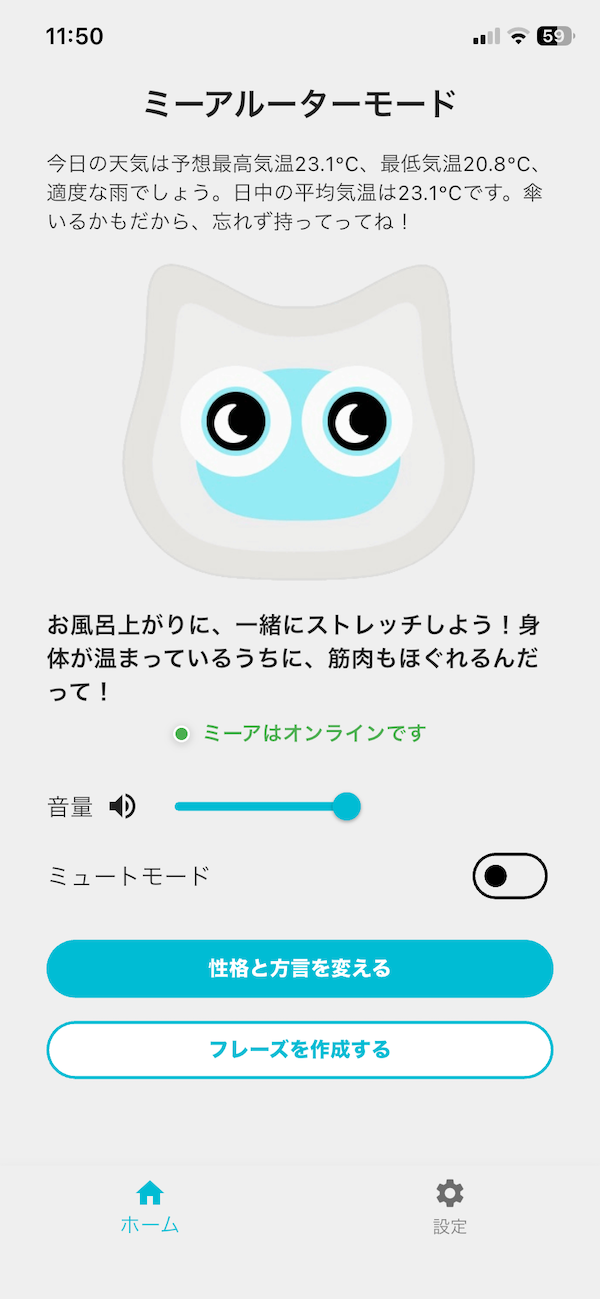
Setting up Mia’s Wi-Fi is usually quick and easy — just follow the steps in the app.
In most cases it goes smoothly, but depending on your home router, setup can sometimes fail. For those situations, we’ve added a new connection method called Router Mode.
First, try the normal setup in the app
If this is your first time setting up Mia, please try the normal setup flow in the app first. It works for most home networks.
If the normal setup doesn’t work
The normal setup sends your Wi-Fi credentials from your phone to Mia over the air. Depending on your router or phone, this signal sometimes doesn’t get through properly.
A common situation is:
- Android phone + dual-band router
A dual-band router broadcasts two kinds of Wi-Fi at once: “2.4GHz” and “5GHz.” On some Android phones, when you run the normal setup in this kind of router environment, only the 5GHz network shows up.
Mia can only connect to 2.4GHz networks. If only 5GHz is visible, setup will fail every time — no matter how many times you retry.
Router Mode avoids this problem entirely
In Router Mode, Mia itself temporarily becomes a Wi-Fi access point (like a mini router). You connect your phone to Mia’s Wi-Fi, then enter your home Wi-Fi details from your phone’s browser.
Router Mode only shows 2.4GHz networks. Even on a dual-band Android setup, you’ll only ever see the 2.4GHz networks Mia can actually connect to — so there’s no risk of accidentally picking 5GHz.
How to set up using Router Mode
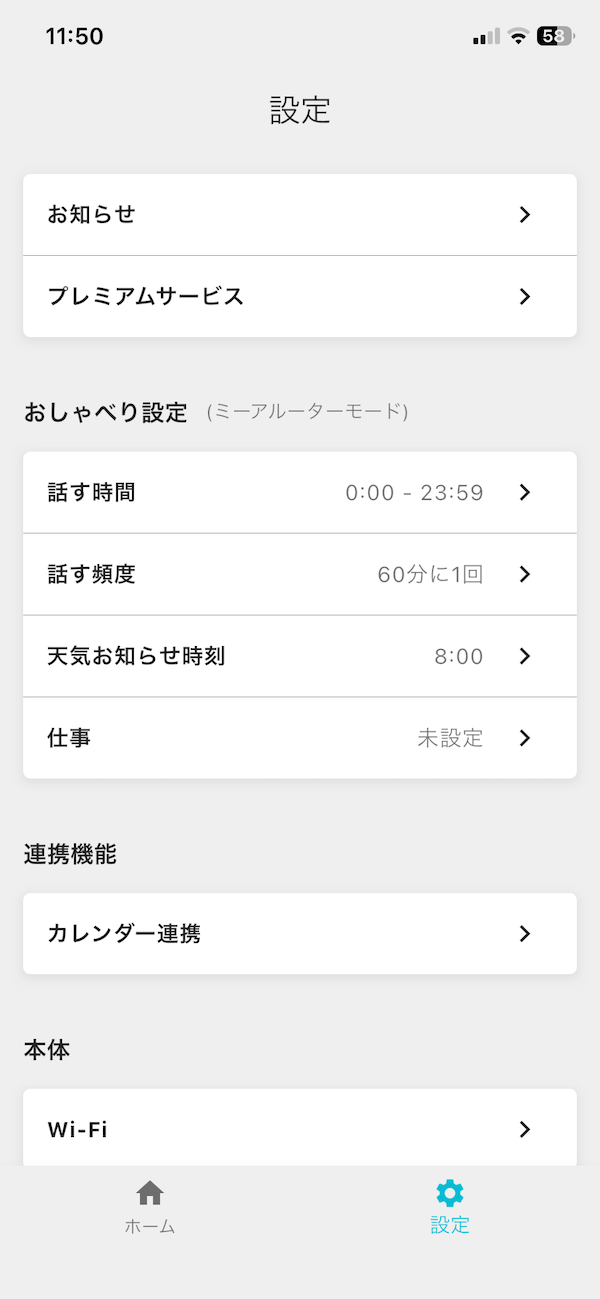
1. Open the “Settings” tab in the app and tap “Wi-Fi”
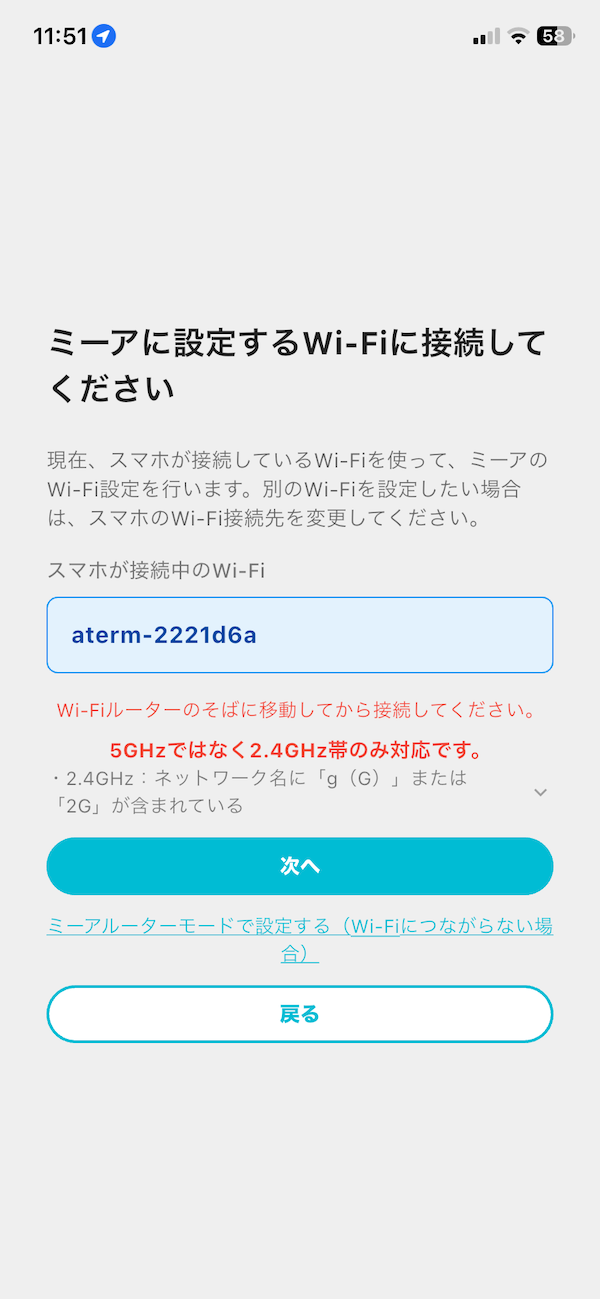
2. Choose “Connect to Wi-Fi at this location”
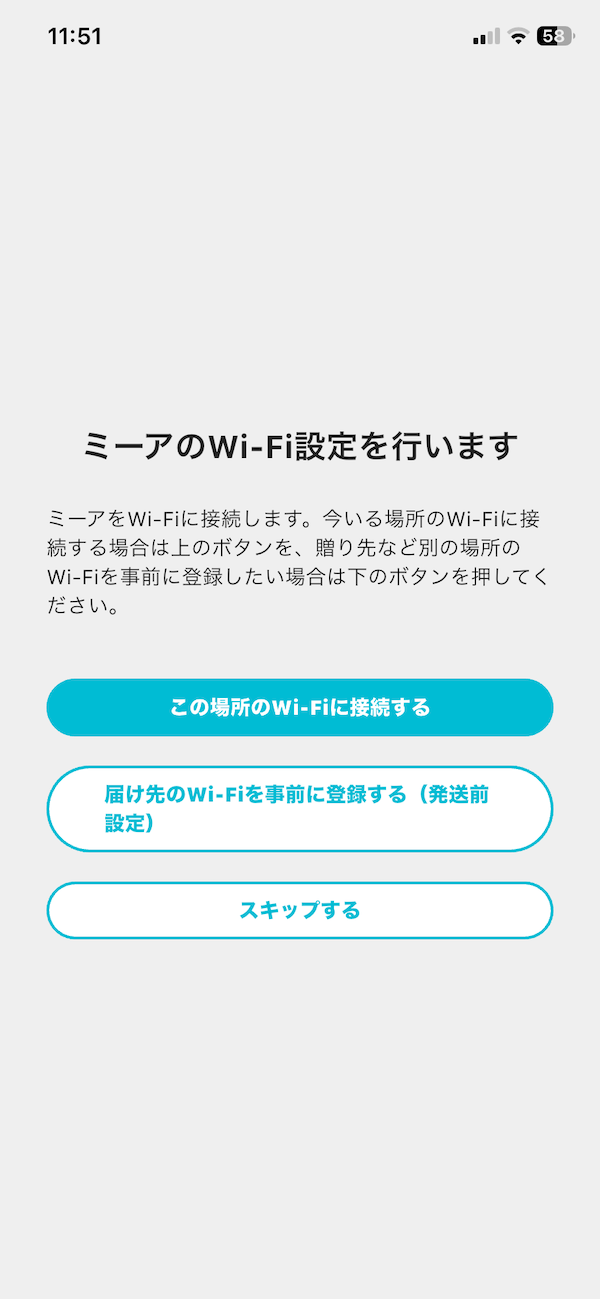
3. If the normal setup doesn’t work, tap “Set up with Mia Router Mode” at the bottom of the screen
About the normal setup method
In most cases, you can connect to Wi-Fi using the normal flow on this screen. For the normal setup steps, see Connecting the App. Only try “Set up with Mia Router Mode” if that doesn’t work.
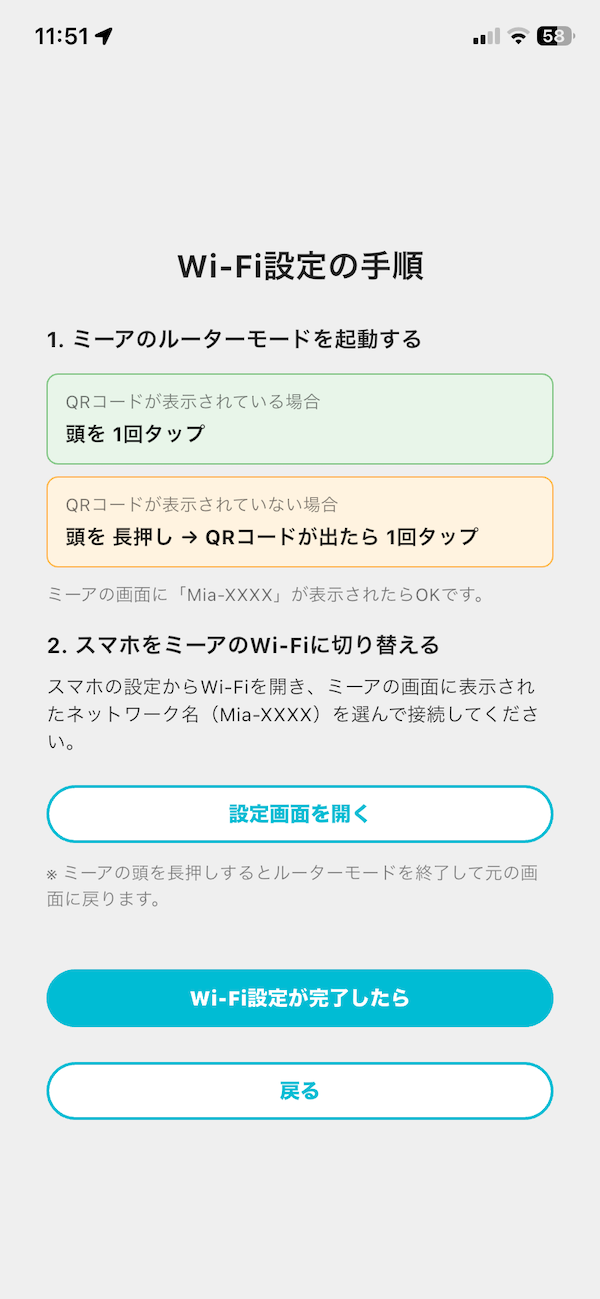
4. Follow the on-screen instructions to start Router Mode on Mia
If a QR code is already showing, tap Mia’s head once. If not, press and hold until the QR code appears, then tap once.
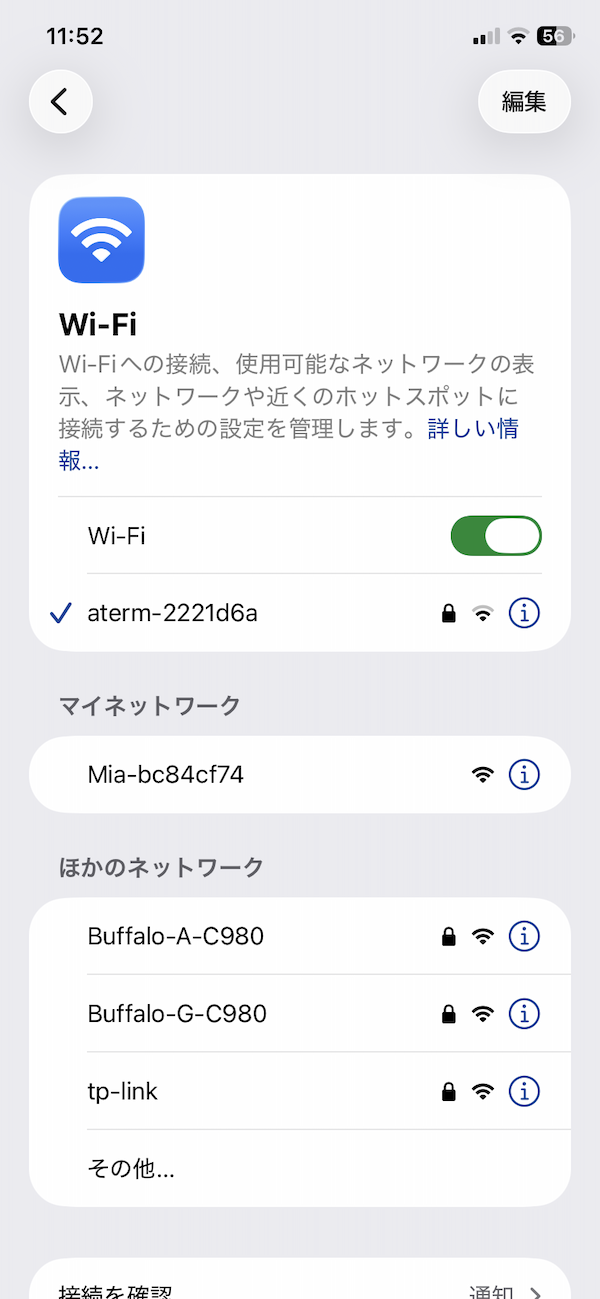
5. Open your phone’s Wi-Fi settings and connect to the “Mia-XXXXX” network
The “XXXXX” part is different for each device. If it doesn’t appear in the list, close and reopen your Wi-Fi settings screen.
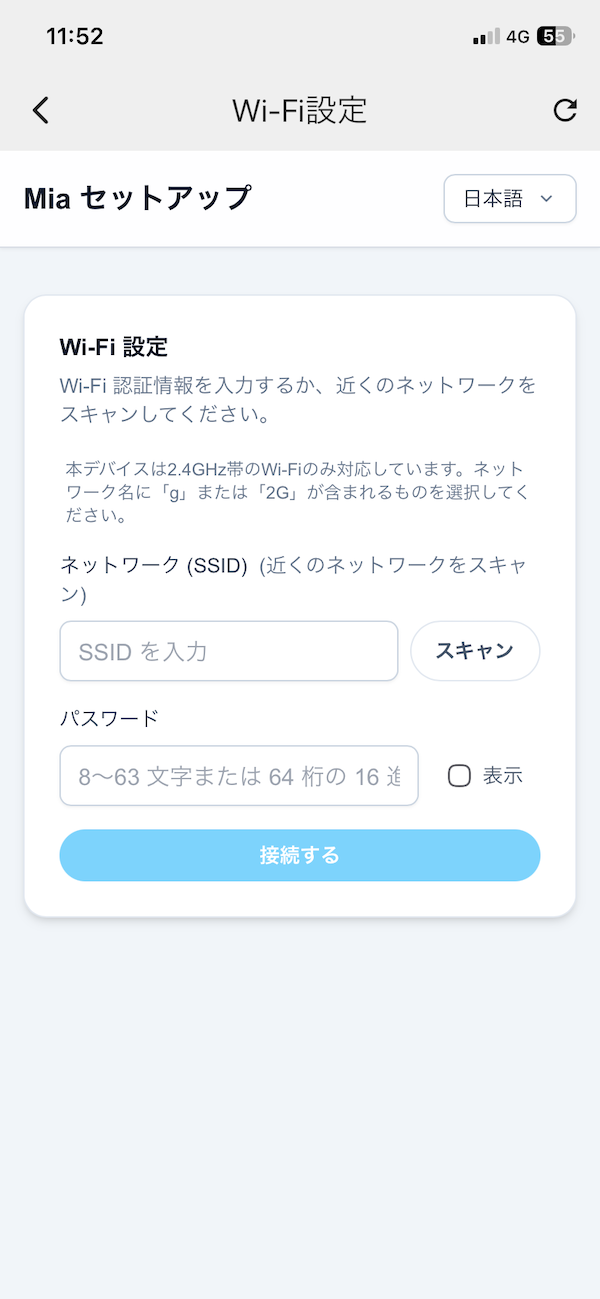
6. A browser will open automatically. Tap “Scan” to see nearby Wi-Fi networks
Select your home’s 2.4GHz Wi-Fi network. If you already know the network name (SSID), you can also type it in directly.
If your Wi-Fi doesn’t appear after scanning
Sometimes it won’t show up on the first scan. If that happens, try tapping “Scan” a few more times.
 [/col][col]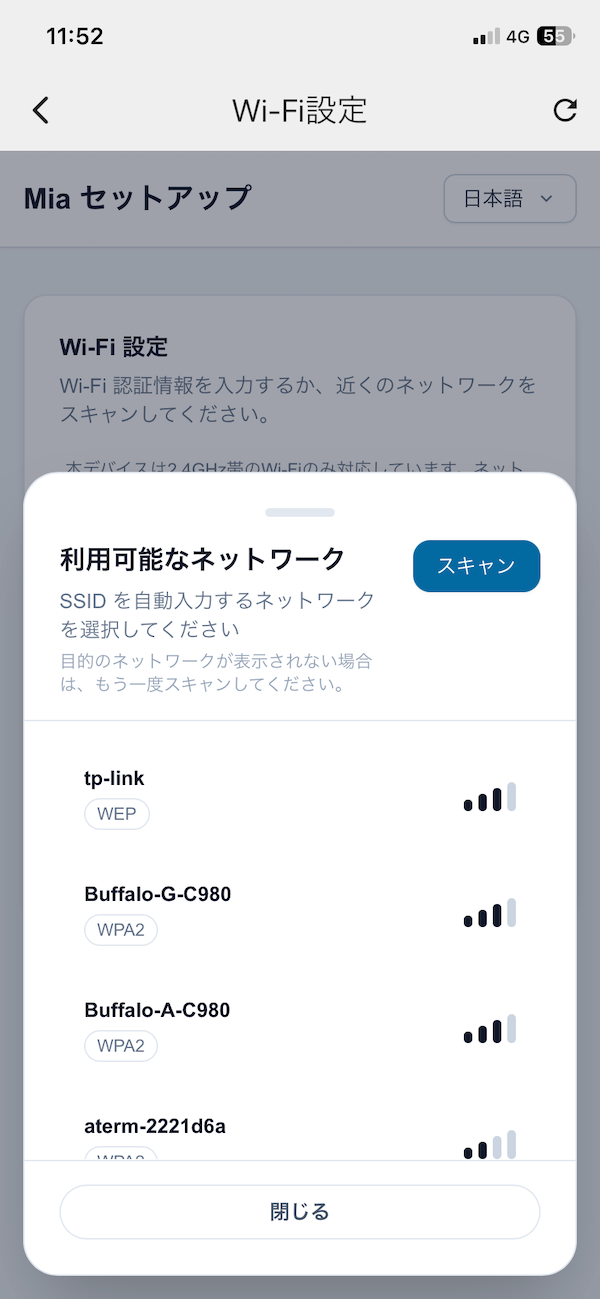
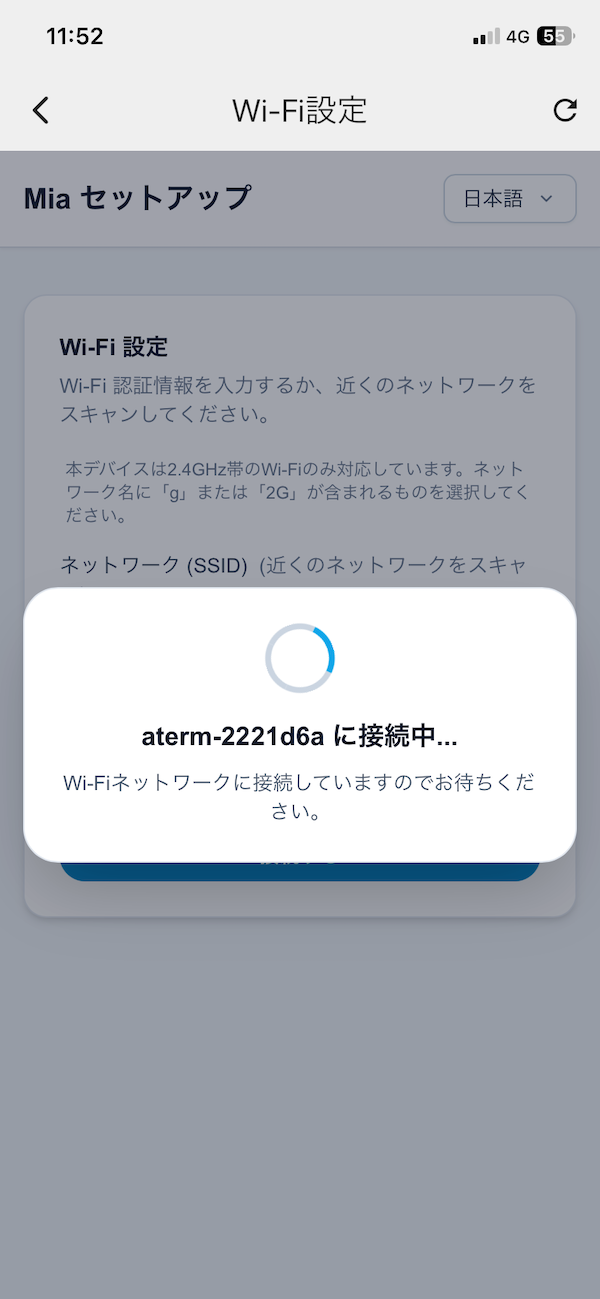
7. Enter your password and tap “Connect”
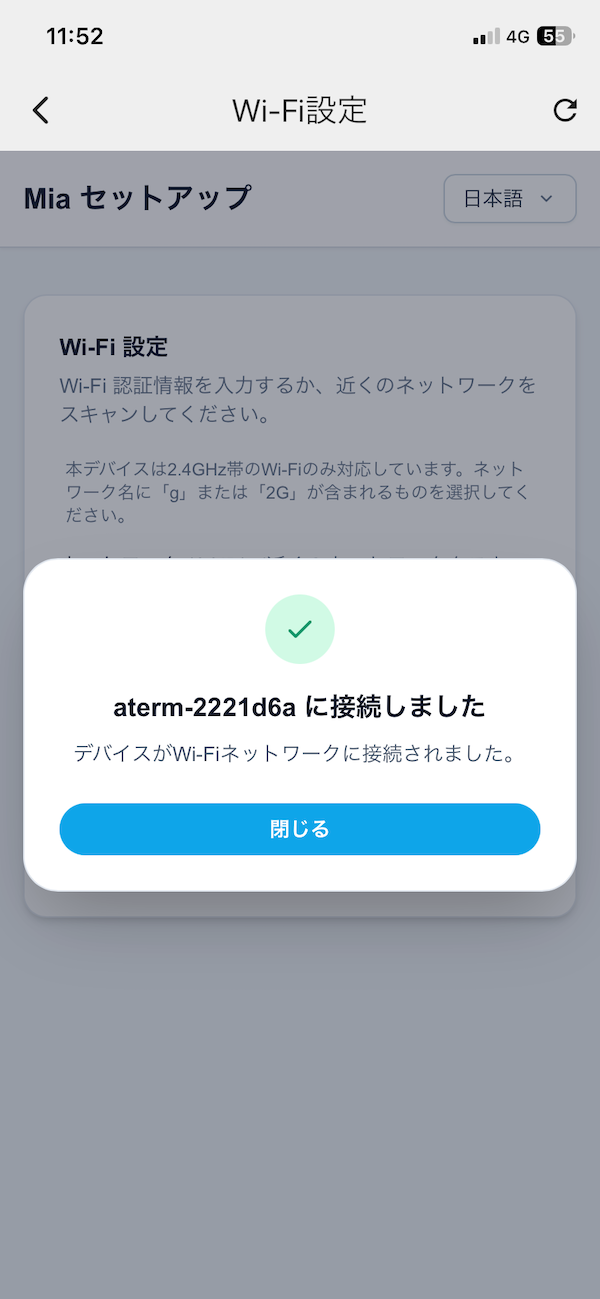
8. Setup complete
After setup, your phone will still be connected to Mia’s Wi-Fi. Open your phone’s Wi-Fi settings, reconnect to your home Wi-Fi, and then return to the app’s home screen.
FAQ
Q. Should I use the normal setup or Router Mode?
Please try the normal setup first. If that doesn’t work, use Router Mode.
Q. My phone loses internet access during Router Mode setup — is that expected?
Yes. While you’re connected to Mia’s Wi-Fi for setup, your phone temporarily has no internet access. Once setup is complete, reconnect your phone to your home Wi-Fi.
If setup still isn’t working, please feel free to contact our support team anytime.
👀 You may also like:
👉 2026 Guide: AI Pet Robots for Elderly Loneliness – A Comparison of 10 Companion Robots
👉 2026 Edition: 9 Recommended Pet Robots Under $150 – Cheap, Cute, and Healing Models
👉 Monthly and Maintenance Costs of Pet Robots: Moflin, LOVOT, Mia, and More
👉 Mia – Your Chatty AI Cat Companion Robot with 100+ Expressions