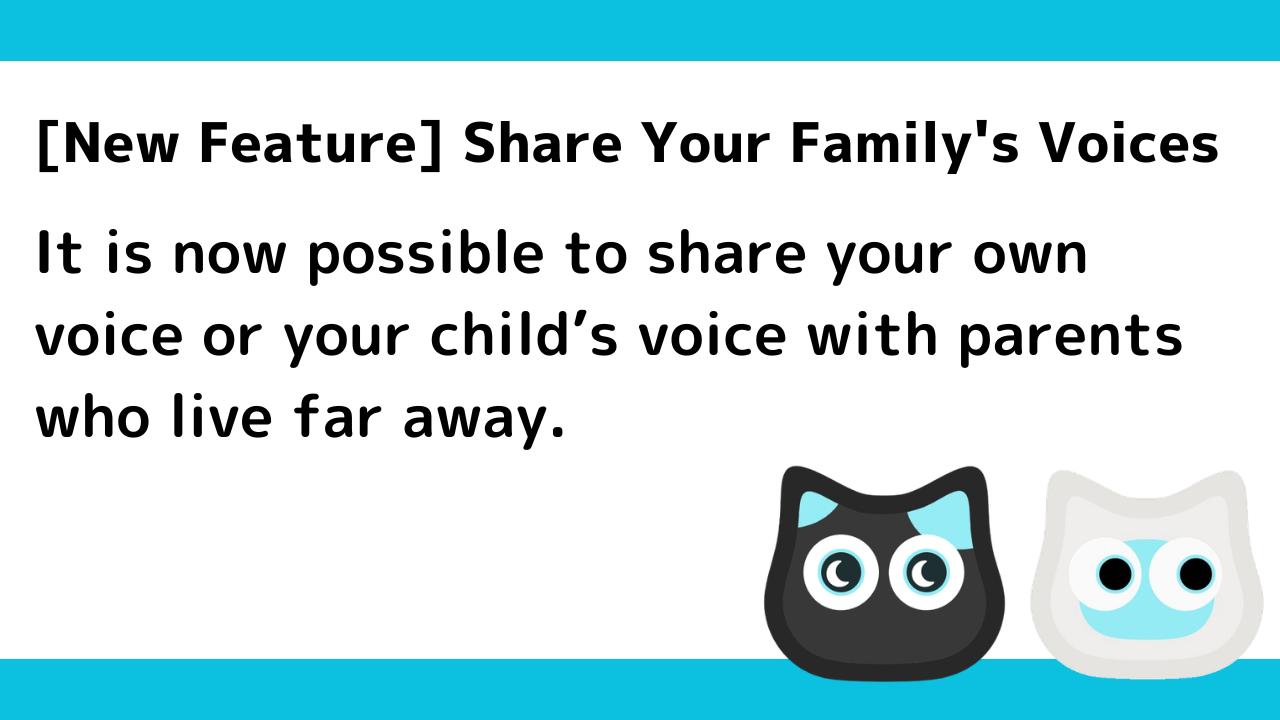
Mia, the cat-shaped AI robot, now has a new “Family Voice Message” feature that lets you send your own voice or your child’s voice directly to your parents’ Mia, even when you live far apart.
Until now, Mia mainly played pre-recorded dialect phrases or read out the weather and schedule. With the Family Voice Message feature, you can record your own voice or your child’s voice in the app and send it directly to your parents’ Mia.
This article explains what you can do with the Family Voice Message feature, how to use it step by step, and a few things to keep in mind.
The Family Voice Message feature is available with just an update to your existing Mia unit and app. You don’t need to buy a new unit, unlike with Conversation Mode.
What You Can Do with the Family Voice Message Feature
Your voice is delivered exactly as it is
Instead of a text message or synthesized speech, your own recorded voice is played back exactly as you recorded it. A casual “Good morning” or “I’ll be home early today” can be delivered in your real voice.
All your parents have to do is touch Mia
When it comes to keeping in touch with parents who live far away, phone calls and messaging apps are usually the go-to option. But for parents who aren’t used to smartphones, even noticing a notification and opening the app can be a real hurdle.
With the Family Voice Message feature, only the sender (you or your child) needs to operate the app. Your parents just have to touch Mia’s head to play the message. No smartphone operation or app installation is required on their end.
On top of that, if you set up Wi-Fi in advance using Router Mode before sending Mia, your parents can start using it just by opening the box and plugging it in. Even parents who aren’t comfortable with gadgets can receive a voice message without any hassle.
Just touch Mia’s head to play it
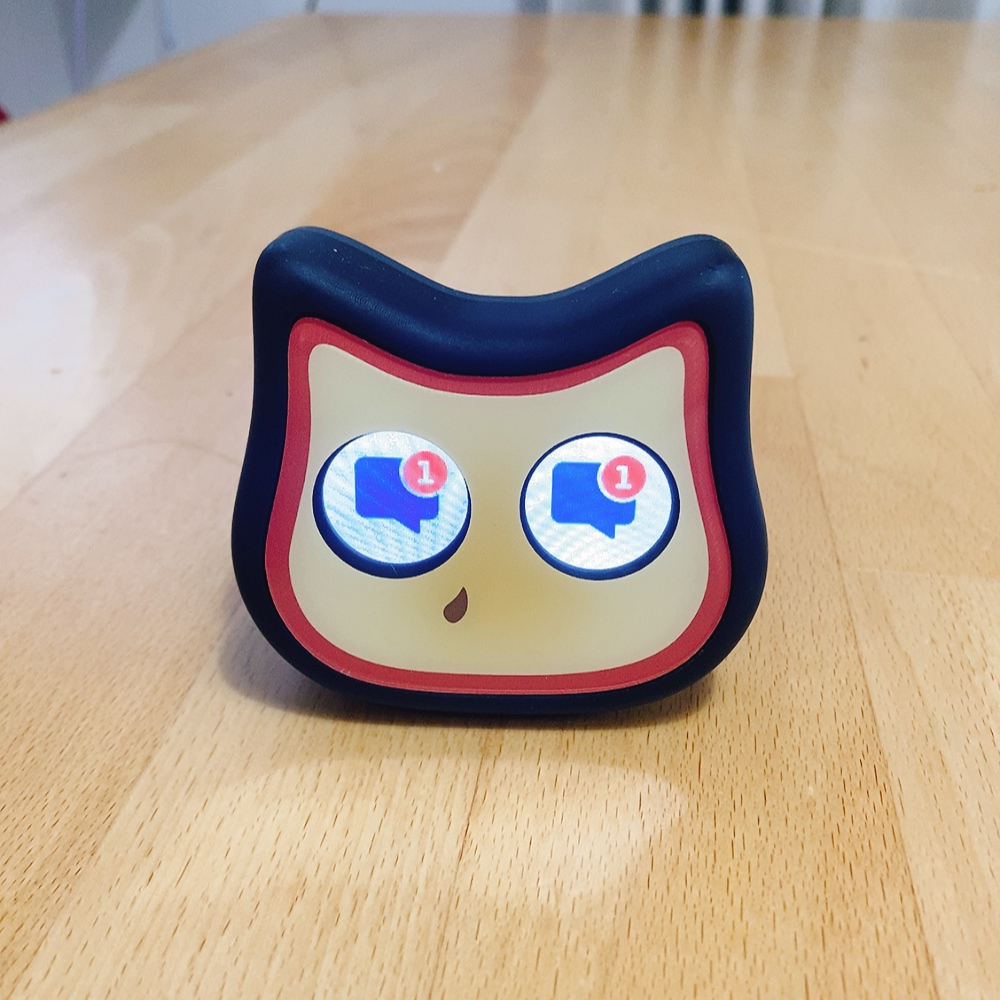
When a message arrives, an envelope icon appears in Mia’s eyes. Touching Mia’s head opens the envelope and plays the recorded voice.
Add a short note (optional)
When sending a message, you can attach a short text note describing what you talked about. This note isn’t read aloud when the message is played — it’s a private memo for the sender to look back on later in the app. It’s optional, and you can send the message with it left blank.
Schedule a delivery time (optional)
You can also send a message for a specific time, such as “deliver at 7am tomorrow.” When the scheduled time arrives, the envelope icon appears on Mia, but it won’t play automatically. Whether or not a time is scheduled, your parents always play the message the same way — by touching Mia’s head.
You’ll know when it’s been heard
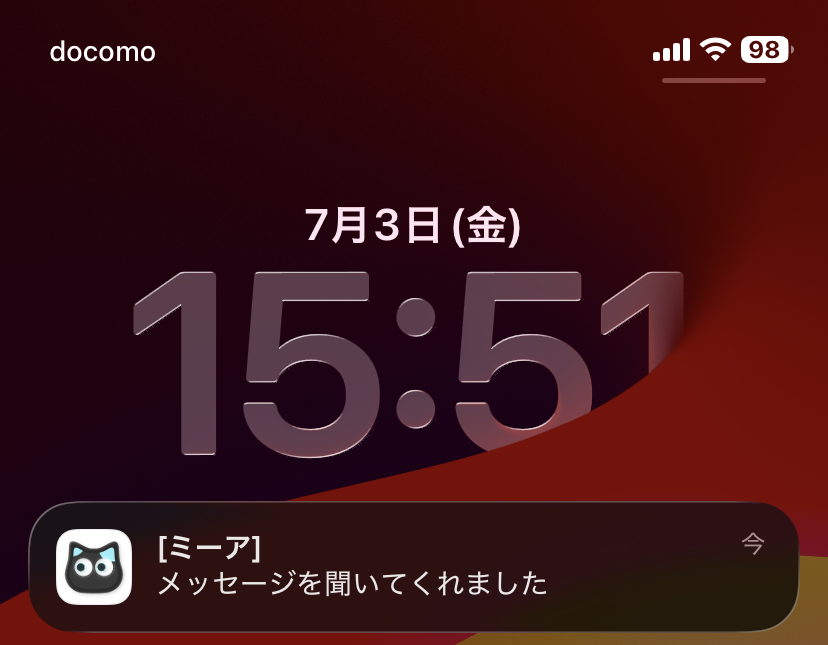
When your parents touch Mia’s head and play the message, the sender’s app shows that it has been played, along with a notification. You won’t have to wonder whether they actually listened to it.
How to Use It
1. Record your voice in the app
Tap the “Family Voice Message” button in the app, then tap “Record & Send Voice” to start recording.
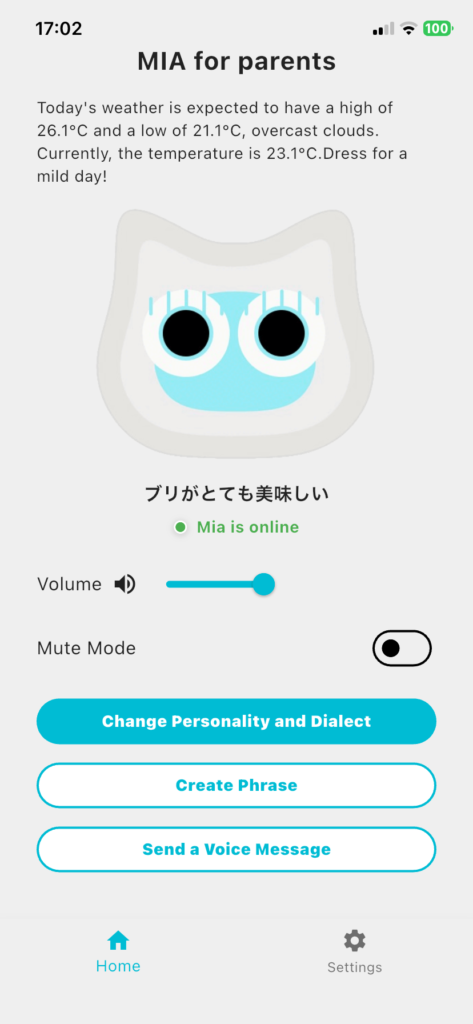
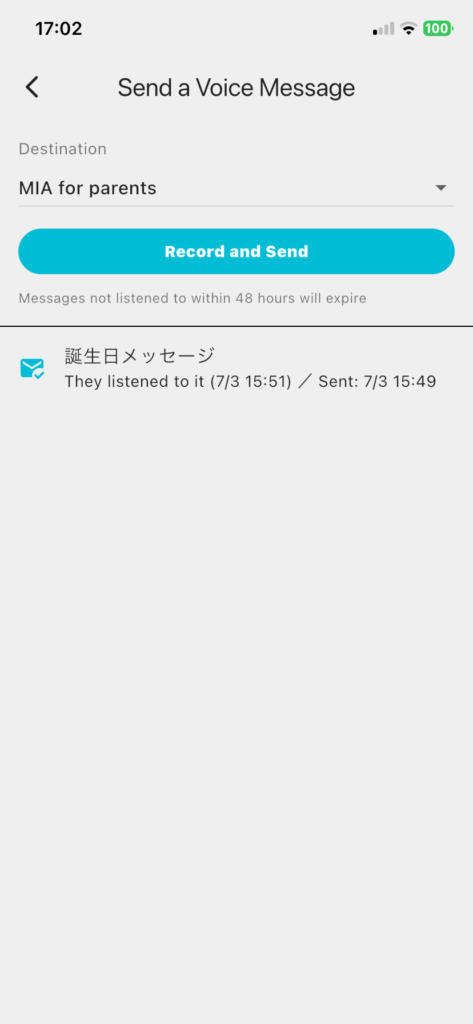
Tap the microphone icon to start recording your voice message.
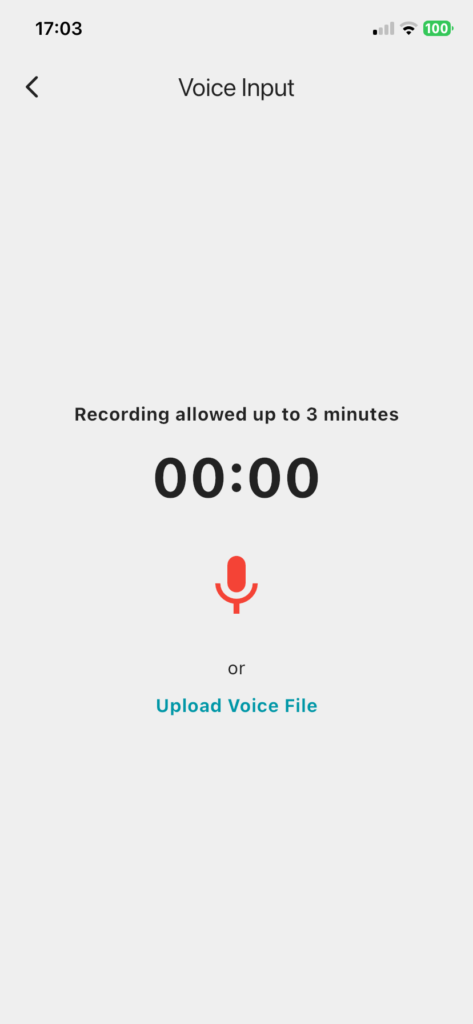
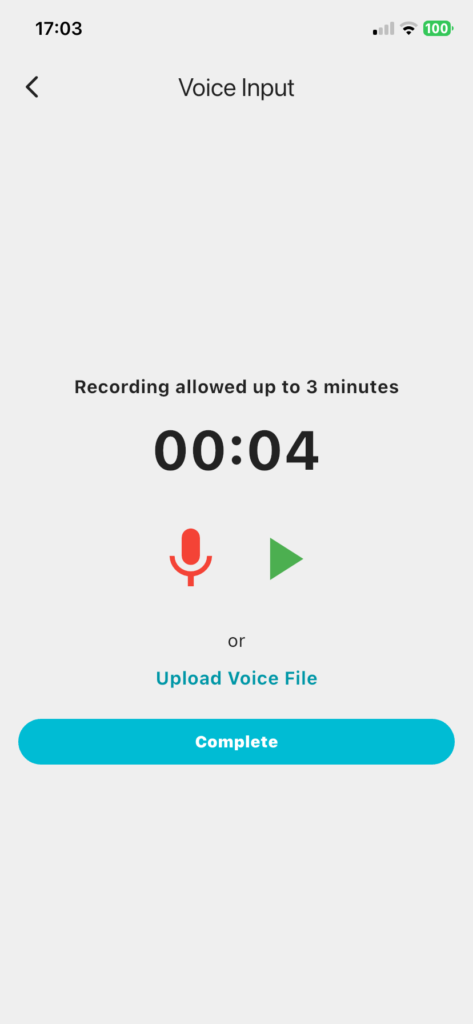
2. Enter a short note (optional)
After tapping the done button on your voice recording, you’ll move to a screen where you can schedule the delivery time and add a short note.
You can type a note for yourself describing what you talked about. You can send the message without entering one.
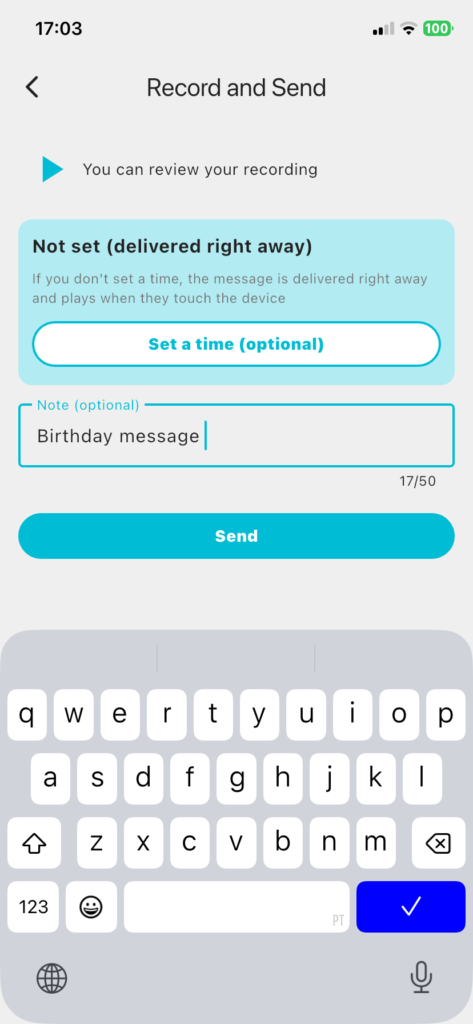
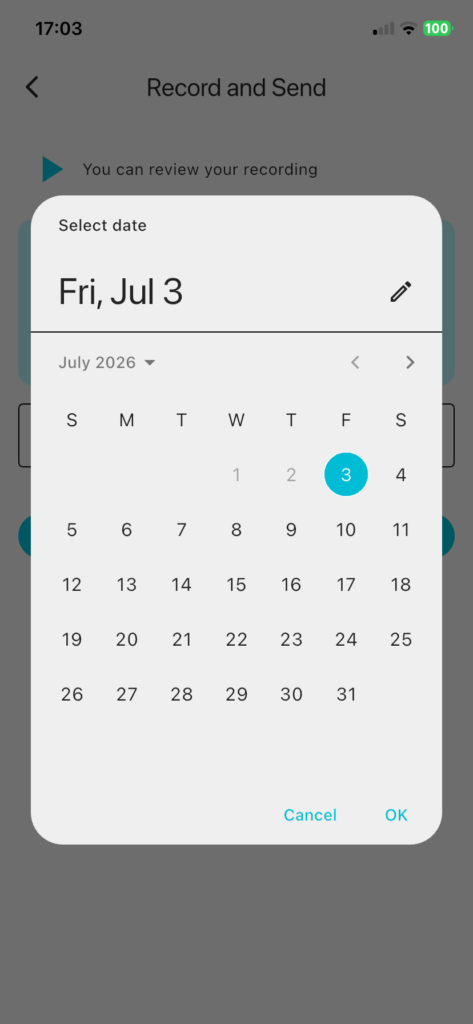
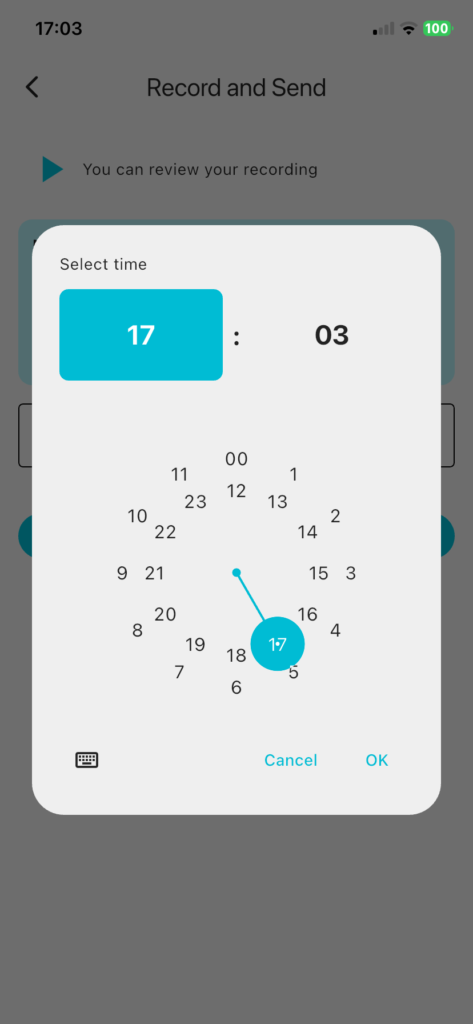
3. Schedule a delivery time (optional)
If you want to deliver it right away, you can send it as is. If you want it delivered at a specific time, set the time before sending.
4. Send it
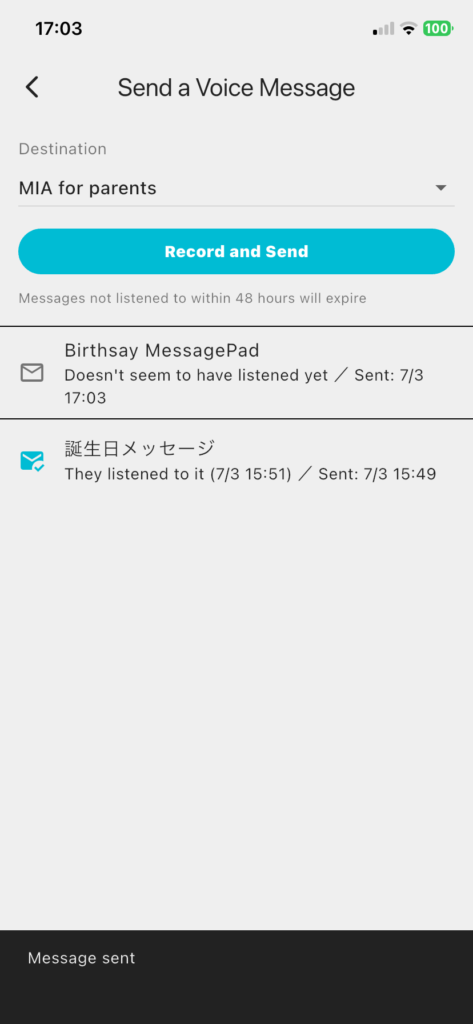
Once sent, the message arrives at the destination Mia. If more than one Mia is linked to your account, you can choose which one to send it to.
5. Your parents touch Mia’s head to play it
When the message arrives, an envelope icon appears in Mia’s eyes. When your parents touch Mia’s head, the recorded voice plays back exactly as it was recorded. No app operation is required.
6. The sender’s app shows that it’s been played
When your parents play the message, the sender’s app shows that it has now been played.

A Few Things to Keep in Mind
Only one message is shown at a time
Mia can only show one message at a time. Even if you send several messages to the same Mia in a row, only one envelope icon appears at a time — once the first is played, the next one appears automatically.
Messages expire after 48 hours
A message that isn’t played within 48 hours of sending (or of the scheduled delivery time) expires. Once expired, it can no longer be played, even if Mia’s head is touched.
Playback happens instantly, even on an unstable connection
Playback itself happens immediately when Mia’s head is touched, regardless of the network condition. If the “played” report is temporarily delayed due to a network issue, the status is synced the next time Mia connects.
How It Differs from Existing Features
| Feature | What it does | Extra unit required | Monthly fee |
|---|---|---|---|
| Dialect phrase greetings | Plays pre-set dialect phrases at fixed times | No | No |
| Weather & Google Calendar integration | Mia reads out the weather and your schedule | No | No |
| Family Voice Message | Delivers a family member’s recorded voice, played with a touch | No | No |
| Conversation Mode | Mia talks back when you speak to it (coming soon) | Yes (two-way model) | $2/month |
Unlike Conversation Mode, the Family Voice Message feature doesn’t require a new unit or a monthly fee. All you need is to update your app and Mia unit to the latest version.
Great For Moments Like These
- Letting your parents hear their grandchild’s voice
- Sending a quick voice message to family while traveling for work
- Reaching parents who aren’t comfortable with smartphones, without adding any burden
- Delivering a voice message at a specific time, like a birthday or anniversary
Frequently Asked Questions
Q. Do I need to buy a new Mia unit to use the Family Voice Message feature?
A. No. You can use it with your current Mia by updating the app and firmware to the latest version.
Q. Is there a monthly fee?
A. No. The Family Voice Message feature is available at no additional cost.
Q. Do my parents need to operate the app too?
A. No. Once a message arrives, they just have to touch Mia’s head to play it. If Wi-Fi is set up in advance with Router Mode, they can start using Mia just by plugging it in.
Q. Can I tell whether a message I sent was heard?
A. Yes. When your parents touch Mia’s head and play it, the sender’s app shows that it’s been played and sends a notification (on first playback only).
Q. Does scheduling a delivery time make it play automatically?
A. No. When the scheduled time arrives, the envelope icon appears, but playing it still requires touching Mia’s head.
Q. How long does a message stay available?
A. 48 hours from when it’s sent (or from the scheduled delivery time). After that, it can no longer be played.
Q. Can I add a text description to a recorded voice message?
A. You can optionally attach a note, but it isn’t read aloud during playback — it’s a private memo the sender can look back on in a list later.
Related Articles
- Set Up Wi-Fi at Home Before Sending Mia to Your Parents with Router Mode
- Mia’s Price and What It Can Do, Starting From $65
- What Is Mia’s Conversation Mode? How the Touch-to-Talk Feature Works
Summary
Mia’s Family Voice Message feature is a new way to deliver your own voice, or your child’s, to your parents exactly as it is, even when you live far apart.
Just record a message in the app and add a short note if you like — your parents only need to touch Mia’s head to hear it. No smartphone operation is required on their end. You can also schedule a delivery time, and check whether the message has been heard. No new unit purchase or monthly fee is needed — you can start using it with just an update to your current Mia and app.