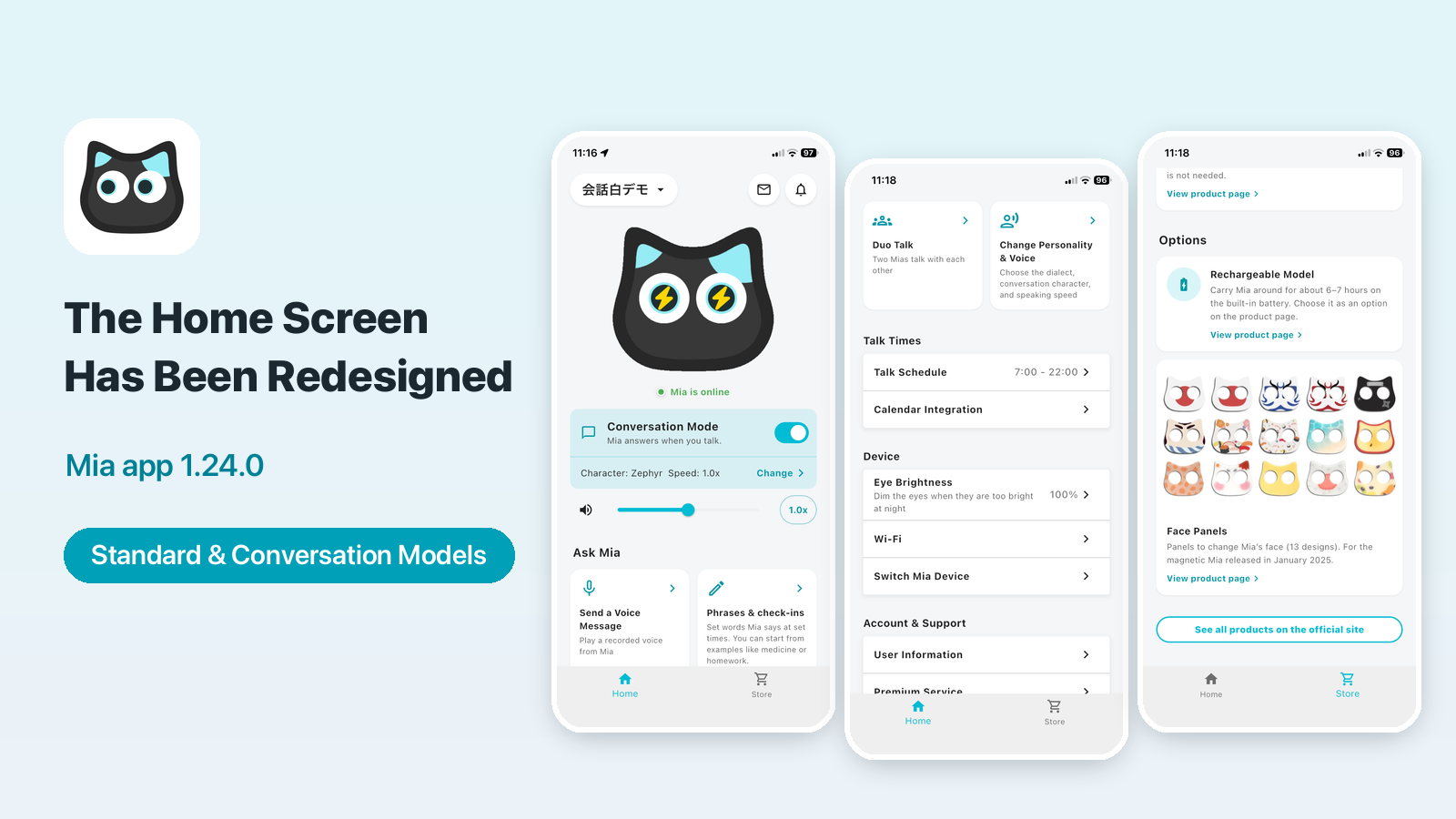
The Mia app (version 1.24.0) has a redesigned Home screen. Everything you do with Mia and all of Mia's settings are now on the Home screen, and the tabs at the bottom are just "Home" and "Store".
If you wonder where the Settings tab went, or where a certain setting is now, this article walks through the new Home screen and shows where the main items are.
Supported models
| Model | Supported |
|---|---|
| Standard Model | Yes |
| Conversation Model | Yes (with extra items for Conversation Mode) |
The Home screen changes slightly depending on your model. The Conversation Mode switch, the speaking speed button next to the volume slider, and Conversation Voice & Speed inside "Change Personality & Voice" appear only on the Conversation Model.
The tabs at the bottom are "Home" and "Store"
The former Settings tab is gone. Its items are now on the Home screen.
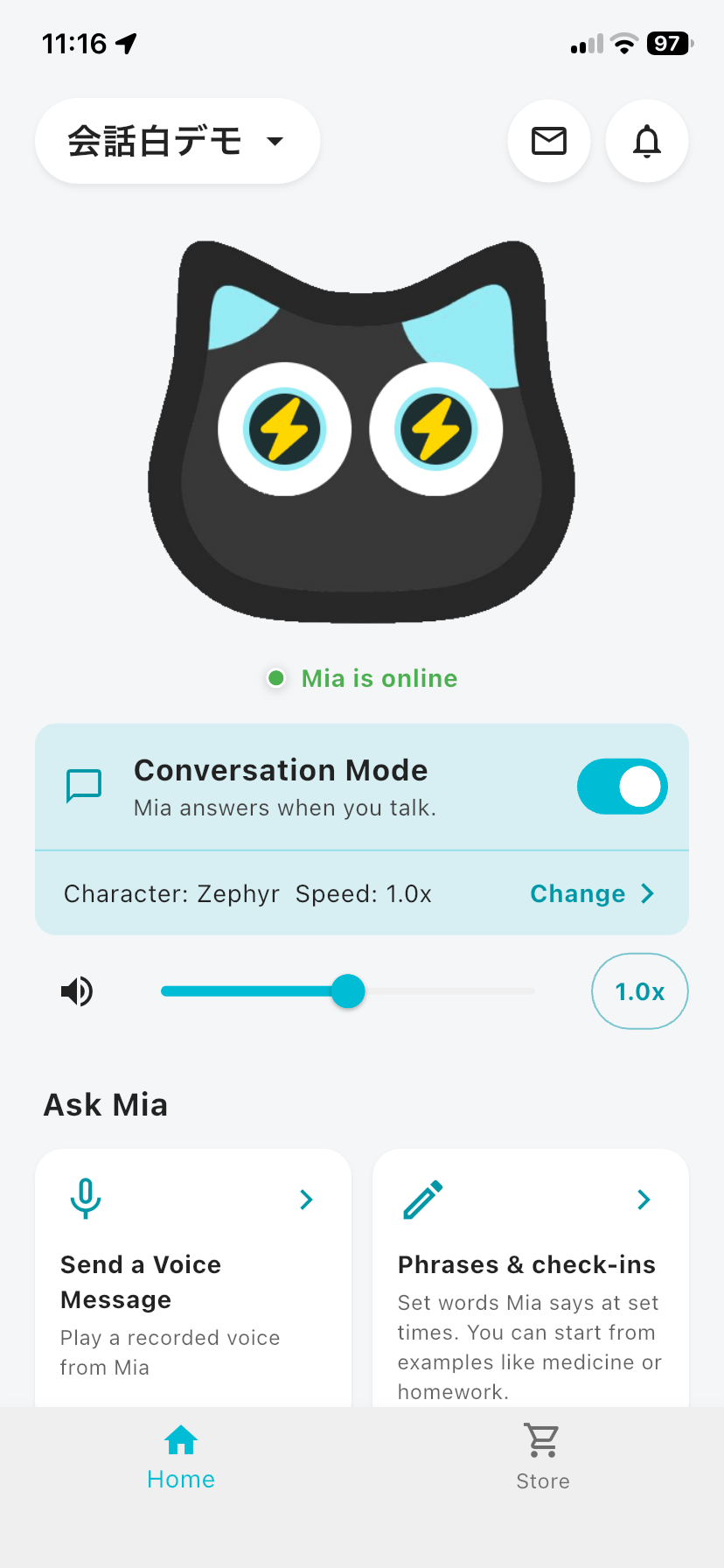
How to read the Home screen
From top to bottom, the Home screen is organized like this.
1. Mia's status and volume
You see Mia's picture, the device name, and the connection status ("Mia is online"). The bell button at the top right shows your notices. Below the picture, the mute button (the speaker icon) sits to the left of the volume slider.
If you use the Conversation Model, you also see:
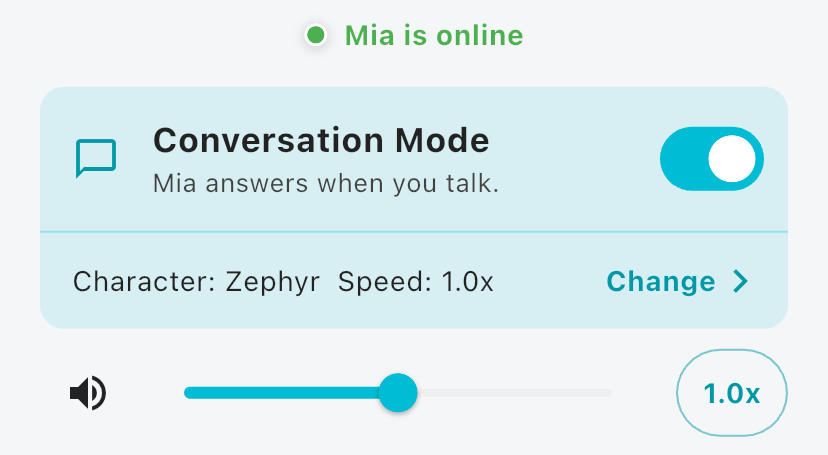
- The Conversation Mode switch: turn it on to talk to Mia by touching her head.
- Conversation character and speaking speed: your current settings are shown, and "Change" lets you edit them.
- The speaking speed button: to the right of the volume slider.
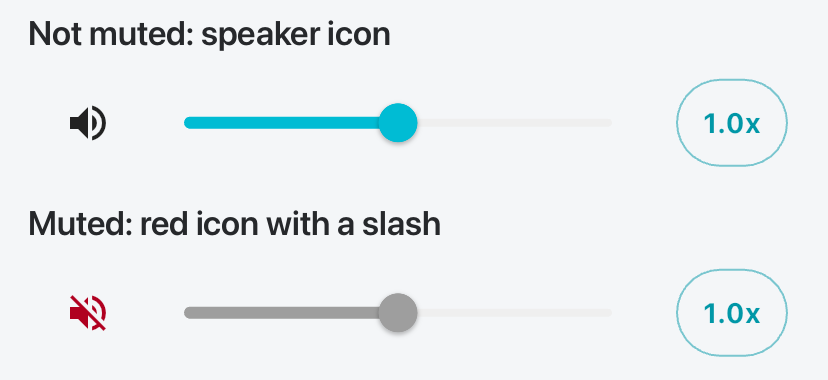
How to mute Mia
Tap the speaker icon to the left of the volume slider to mute Mia. While muted, the icon turns red with a slash through it and the slider turns gray. Tap the icon again to unmute.
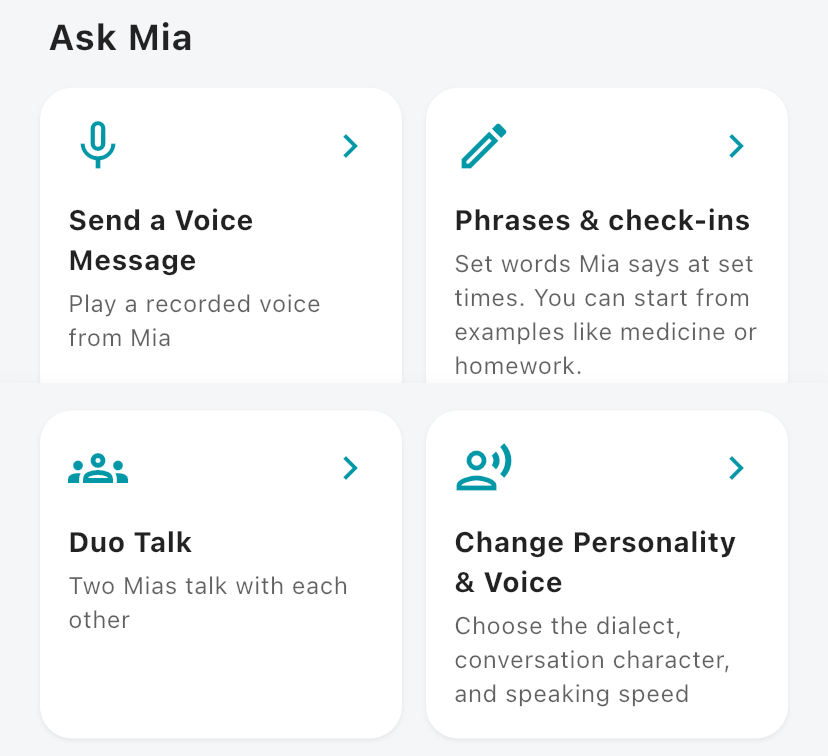
2. "Ask Mia"
Pick what you want Mia to do from these cards.
| Card | What it does |
|---|---|
| Send a Voice Message | Play a recorded voice from Mia |
| Phrases & check-ins | Set words Mia says at set times. You can start from examples like medicine or homework |
| Duo Talk | Two Mias talk with each other |
| Change Personality & Voice | Choose the dialect, conversation character, and speaking speed |
3. "Talk Times"
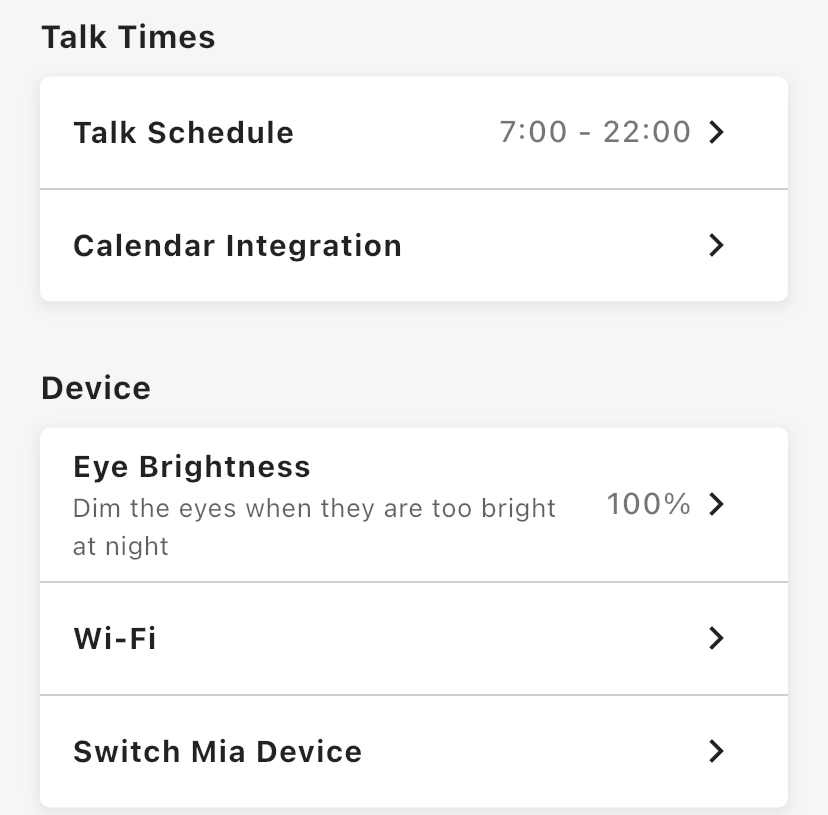
Here you set the hours when Mia talks ("Talk Schedule") and link your Google Calendar ("Calendar Integration").
4. "Device"
You find "Eye Brightness", "Wi-Fi" and "Switch Mia Device". If Mia's eyes are too bright at night, you can dim them with "Eye Brightness" at the top of this section.
5. "Account & Support"
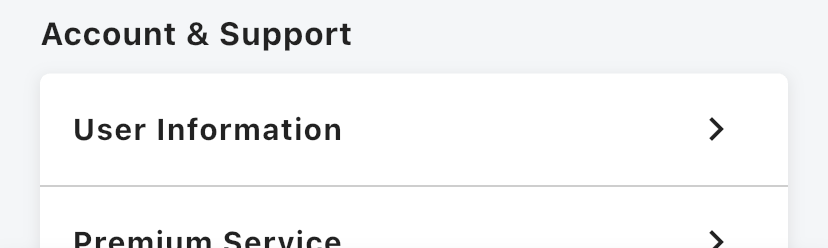
This section has "User Information", "Premium Service", "Help & Contact" and "About This App".
Where to log out or withdraw
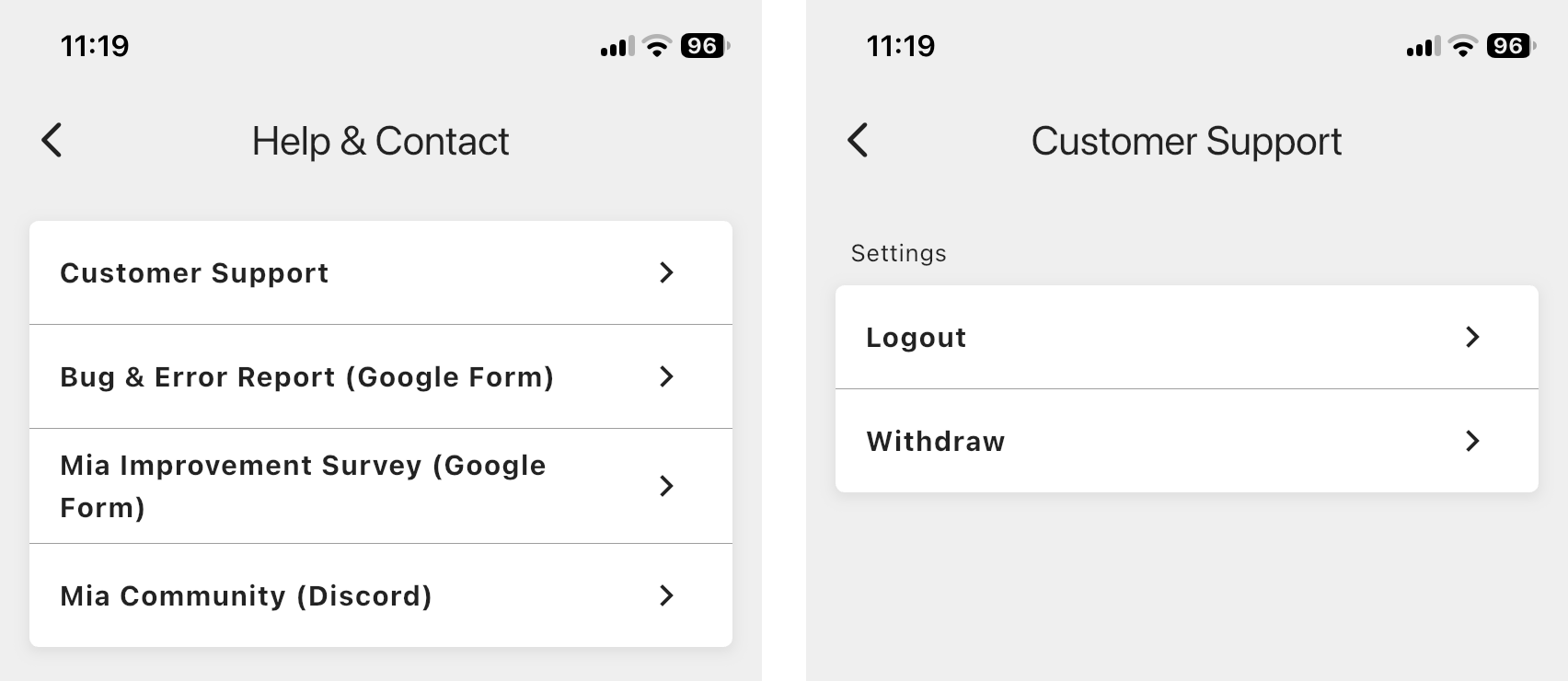
Log out and Withdraw are inside "Help & Contact".
- Tap "Help & Contact" in the "Account & Support" section.
- Tap "Customer Support".
- Choose "Logout" or "Withdraw".
For the withdrawal steps, see How to delete your Mia app account.
Where the old settings are now
| Old item | Where it is now |
|---|---|
| Talk Schedule | "Talk Times" section |
| Calendar Integration | "Talk Times" section |
| Dialect, personality, voice type, conversation voice | "Change Personality & Voice" under "Ask Mia" |
| Duo Talk | "Duo Talk" under "Ask Mia" |
| Wi-Fi, Switch Mia Device | "Device" section |
| Premium Service, Help & Contact | "Account & Support" section |
| Logout, Withdraw (Customer Support) | Inside "Help & Contact" under "Account & Support" |
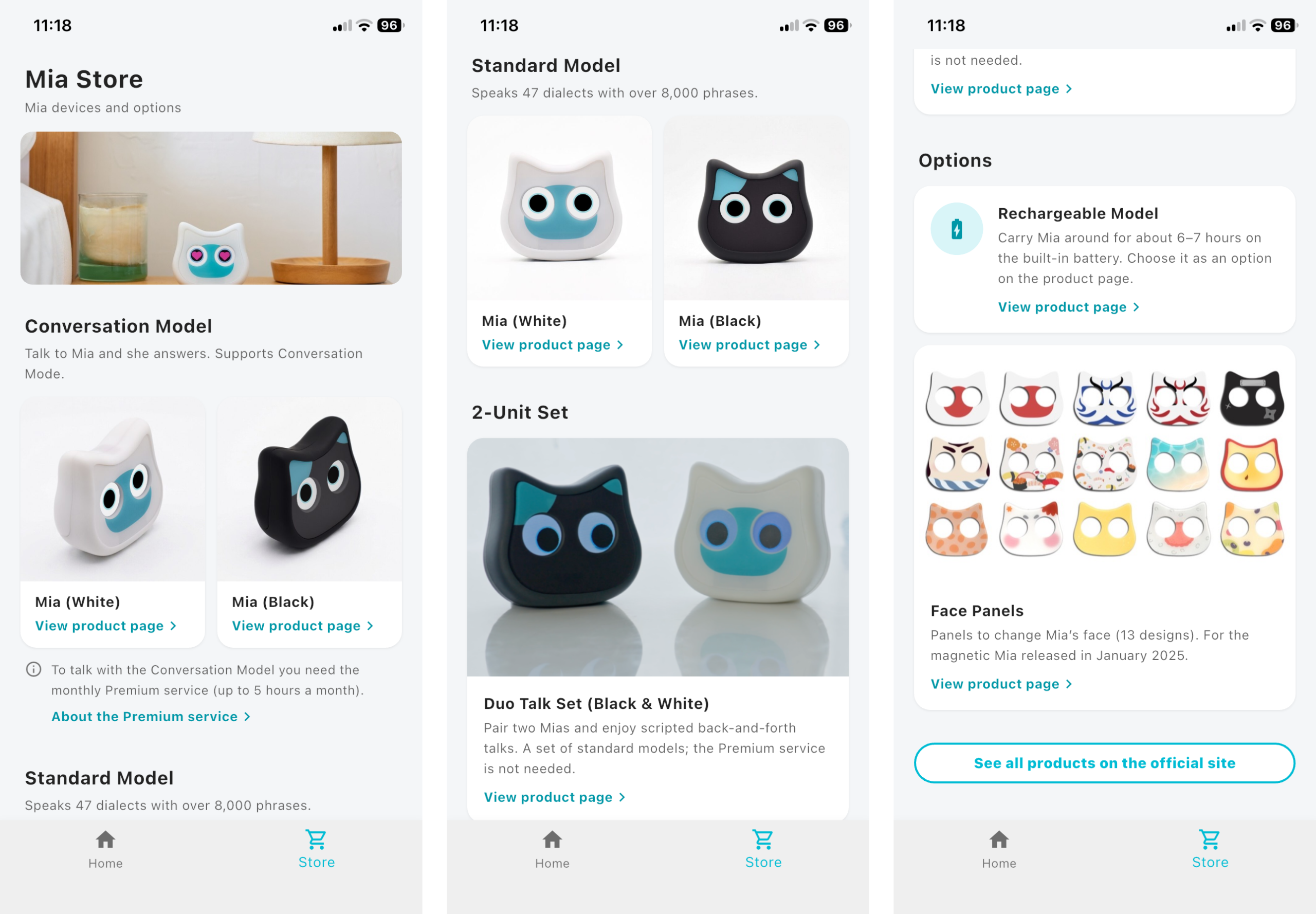
What you can do in the Store tab
The Store tab lets you look at Mia devices and options.
- The Conversation Model (white and black), with a note about the monthly Premium service
- The Standard Model (white and black)
- Options: the Rechargeable Model (about 6–7 hours on the built-in battery) and Face Panels
- The 2-Unit Set: the Duo Talk Set (black and white)
From the app you can go to the product pages on the official site, and the "See all products on the official site" button at the bottom also takes you there.
If you use the Conversation Model
On the Conversation Model, the Home screen adds the Conversation Mode switch and the speaking speed button, and "Change Personality & Voice" lets you choose the conversation character (15 voices) and the English voice (7 voices). For how it differs from the Standard Model, see Mia's Two-Way Conversation Mode.
🐱 Conversation Model details and purchase
Mia (Black) Conversation Model / Mia (White) Conversation Model
Summary
- The tabs at the bottom are now "Home" and "Store"
- The settings are all on the Home screen
- Tap the speaker icon left of the volume slider to mute
- Under "Ask Mia", you reach Voice Messages, Phrases & check-ins, Duo Talk, and Personality & Voice
If you can't find an item, please contact us from "Help & Contact" in the app.
👀 You may also like:
👉 2026 Guide: AI Pet Robots for Elderly Loneliness – A Comparison of 10 Companion Robots
👉 2026 Edition: 9 Recommended Pet Robots Under $150 – Cheap, Cute, and Healing Models
👉 Monthly and Maintenance Costs of Pet Robots: Moflin, LOVOT, Mia, and More
👉 Mia – Your Chatty AI Cat Companion Robot with 100+ Expressions