Have you ever wanted to give Mia as a gift to your parents or grandparents who live far away, but worried that the Wi-Fi setup would be too difficult for them?
Until now, this meant either traveling to their home to set it up yourself, or walking them through it over the phone while they operated the app themselves.
We’ve actually heard from customers that “going to my parents’ house to connect it to their Wi-Fi router was a hassle.”
Now, with the new “Router Mode,” that hassle is gone. You can finish the Wi-Fi setup at your own home before sending Mia off.
The Problem Until Now
Setting up Mia for the first time requires connecting it to the Wi-Fi network at the location where it will be used.
Until now, you had to bring Mia to that location to set it up. That meant one of the following was necessary:
- Traveling to your parents’ home to set it up
- Walking your parents through the app setup over the phone
Both options are a real burden for parents who aren’t used to smartphones, and traveling to visit them can be a hassle if they live far away.
Now You Can “Set It Up First, Then Send It”
With Router Mode, you can enter your parents’ Wi-Fi information at your own home before sending Mia to them.
Your parents don’t need to install the app or touch any settings screens at all.
Steps for Setting It Up in Advance
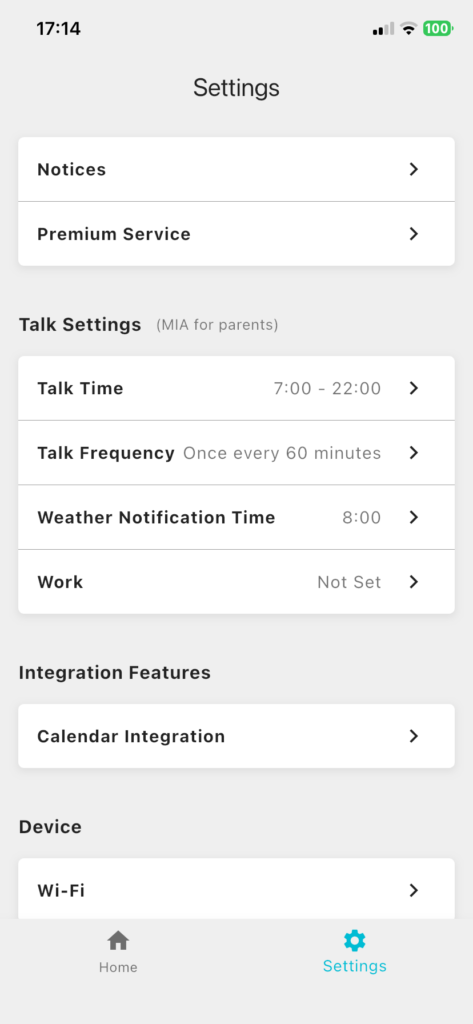
1. Open the “Settings” tab in the app and tap “Wi-Fi”
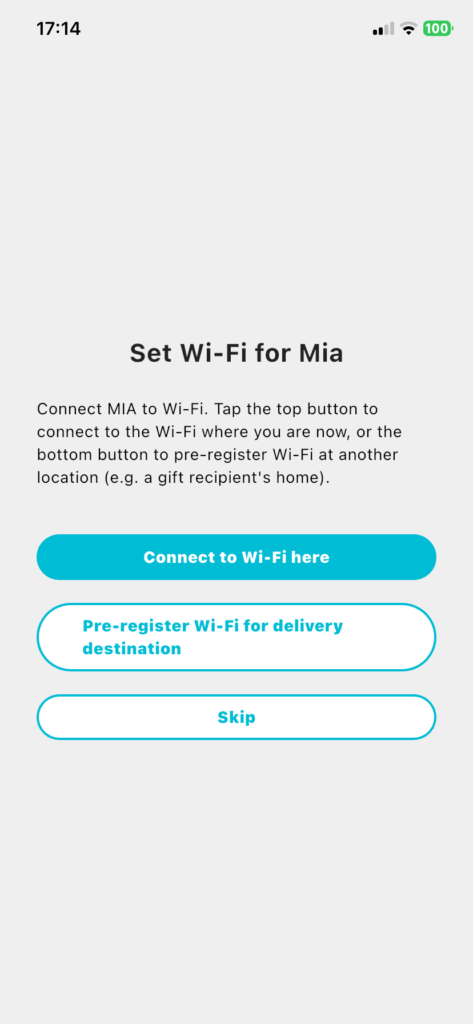
2. Choose “Register the destination Wi-Fi in advance (pre-send setup)”
3. Follow the on-screen instructions to start Mia’s Router Mode
If a QR code is showing, tap Mia’s head once. If it isn’t showing, press and hold, and once the QR code appears, tap once. Mia’s eyes will then display its own Router Mode Wi-Fi network.
Mia’s Router Mode Wi-Fi isn’t showing up.
If Mia’s Router Mode Wi-Fi network doesn’t appear in your smartphone’s Wi-Fi settings, press and hold Mia’s head once to switch to the mode where its eyes move, then press and hold again — once the QR code appears, tap once to display Router Mode in Mia’s eyes, and then select Mia’s network in your smartphone’s Wi-Fi settings.
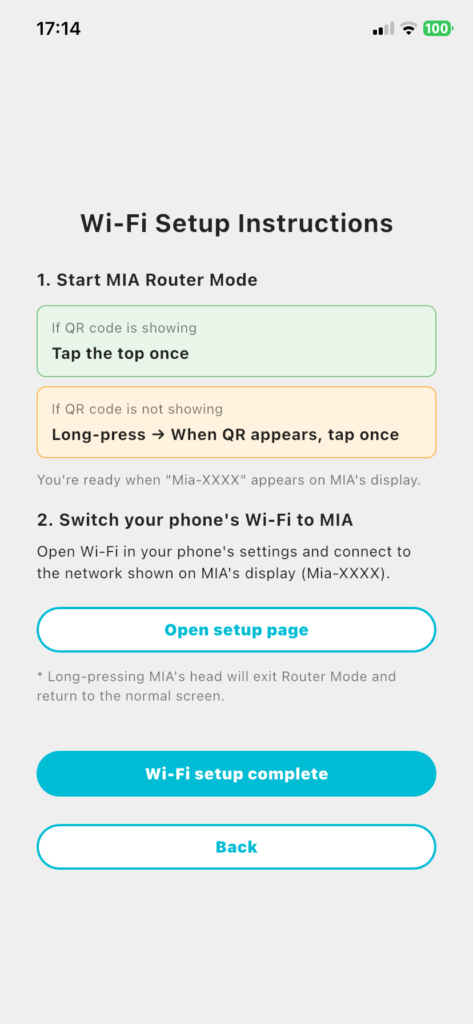
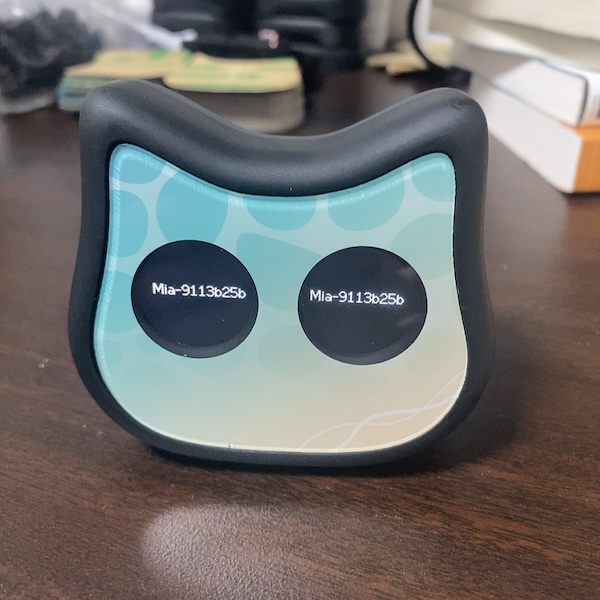
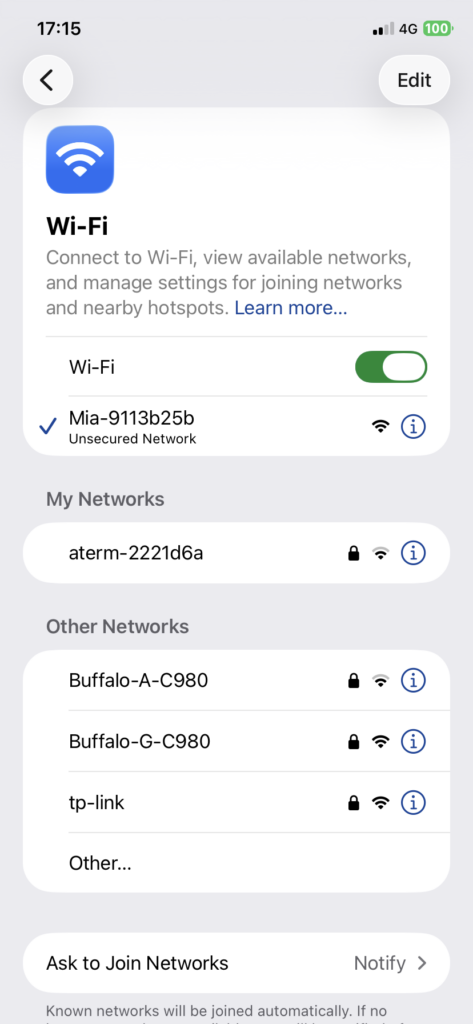
4. Open your smartphone’s Wi-Fi settings and connect to the “Mia-XXXXX” network
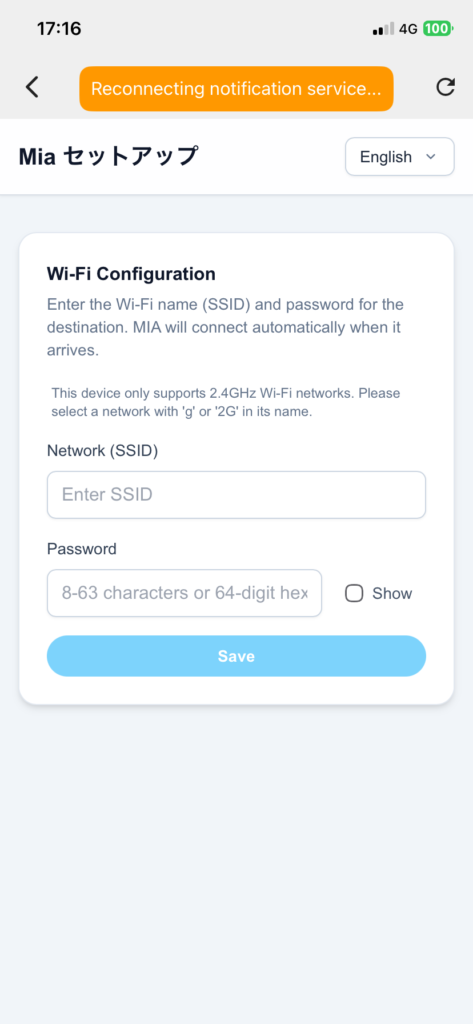
5. A browser opens automatically. Enter your parents’ home Wi-Fi SSID and password, then tap “Save”
Be sure to confirm the SSID and password with your parents in advance, such as by phone.
Note: There’s no scan button on this screen.
Unlike setting up Wi-Fi at your own home, your parents’ router isn’t nearby during pre-send setup, so Mia can’t automatically scan for it. Please enter your parents’ Wi-Fi SSID (network name) and password manually.
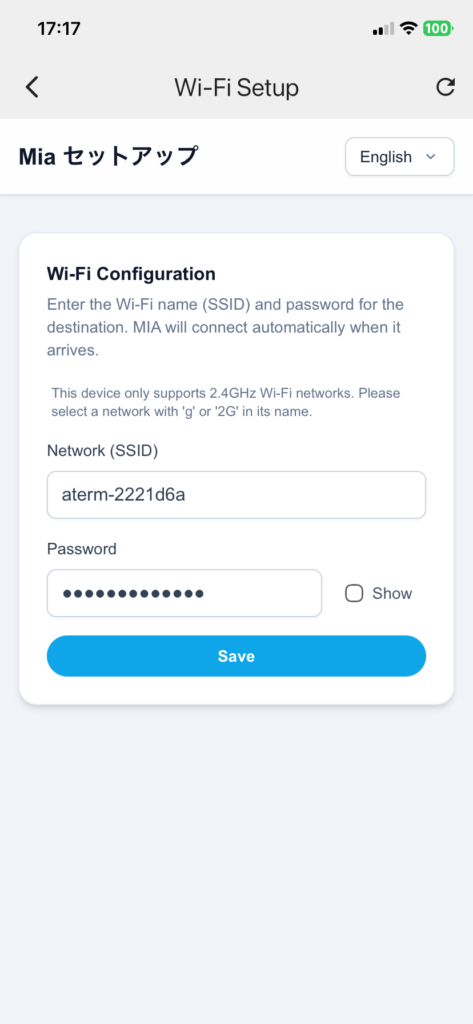
6. “Wi-Fi information saved” will be displayed
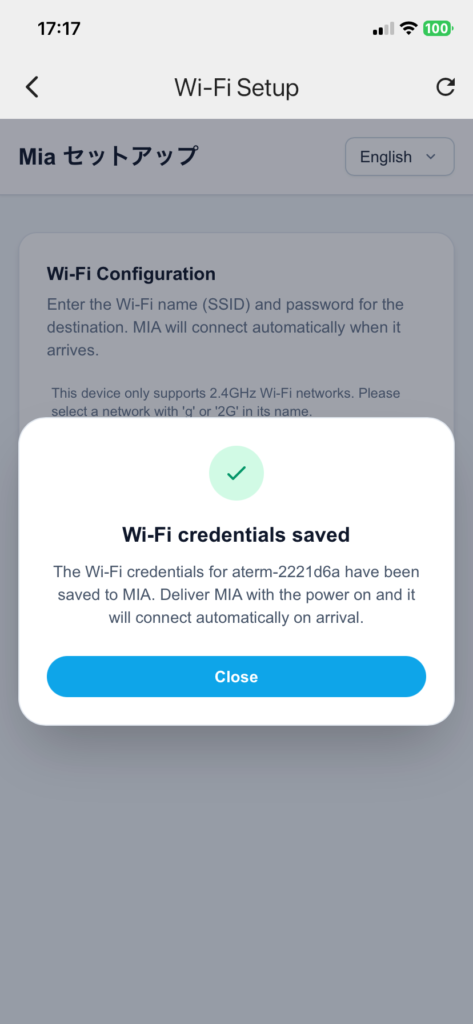
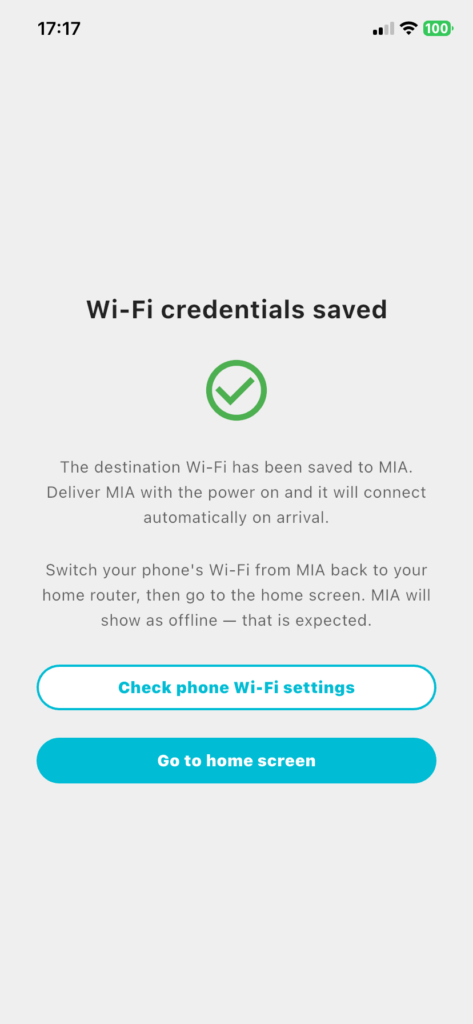
7. Setup is complete once you see the “Wi-Fi information registered” screen
Switch your smartphone’s Wi-Fi back from Mia to your own home router before proceeding to the home screen.
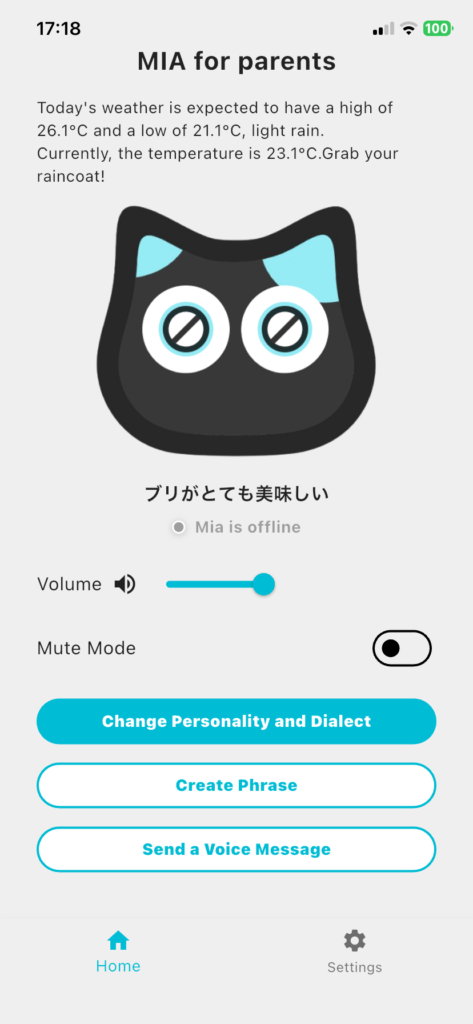
About the “offline” status
At this point Mia will show as “offline,” but that’s expected. Mia already has your parents’ router information saved, but since that router is far away, it can’t connect from your current home. Once it’s delivered to your parents’ home and plugged in, it will connect to their Wi-Fi automatically.
8. Ship or bring the pre-configured Mia to your parents’ home
9. Your parents just plug it in, and it connects to Wi-Fi automatically
Key Points for Setting It Up in Advance
Setting up Router Mode requires your parents’ Wi-Fi SSID and password. Be sure to confirm these with them in advance, by phone or message.
Also Great as a Gift
This method also works well when giving Mia as a gift. Receive the order at your own home, complete the setup, and then send it to your parents — they only need to open the box and plug it in to start using it.
After Wi-Fi Setup, You Can Still Send Messages from Your App
Mia stays linked to the account of whoever completed the Wi-Fi setup. This isn’t specific to Router Mode — it’s how Mia works in general — so even after sending a pre-configured Mia off, you can still deliver messages and voice recordings to your parents from your app.
If you’d rather send a message whenever the moment strikes, you can also use the Family Voice Message feature. Your parents just have to touch Mia’s head, and your recorded voice plays back exactly as it was recorded.
For scheduled messages, the Original Message feature lets you set up recorded phrases or your own voice to play automatically at a set time. Your parents don’t need to do anything — as long as Mia is powered on, the message plays on schedule.
Here are some examples of how you could use it:
- “Every day at noon, play a message in my grandchild’s voice: ‘Grandpa, did you take your medicine?'”
- “On the morning of their birthday, deliver ‘Happy birthday, Grandpa!’ in your grandchild’s voice”
- “In the evening, have your son’s voice ask, ‘How have you been lately?'”
Everything is set up from your app, so your parents don’t need to touch their smartphone at all.
Frequently Asked Questions
Q. Is it a problem if my home Wi-Fi is different from my parents’ Wi-Fi?
No, that’s not a problem. Your setup device never connects to your own home Wi-Fi during this process — it only writes your parents’ Wi-Fi information onto Mia.
Q. What happens if I enter the wrong SSID or password?
When your parents power on Mia at their home, the Wi-Fi connection will fail and Mia will automatically switch back to Router Mode. You can then walk them through re-entering the correct details from their smartphone’s browser over the phone.
For details on setting up Wi-Fi at your own home, see “If Mia’s Wi-Fi Setup Isn’t Working, You Can Connect Using Router Mode.”