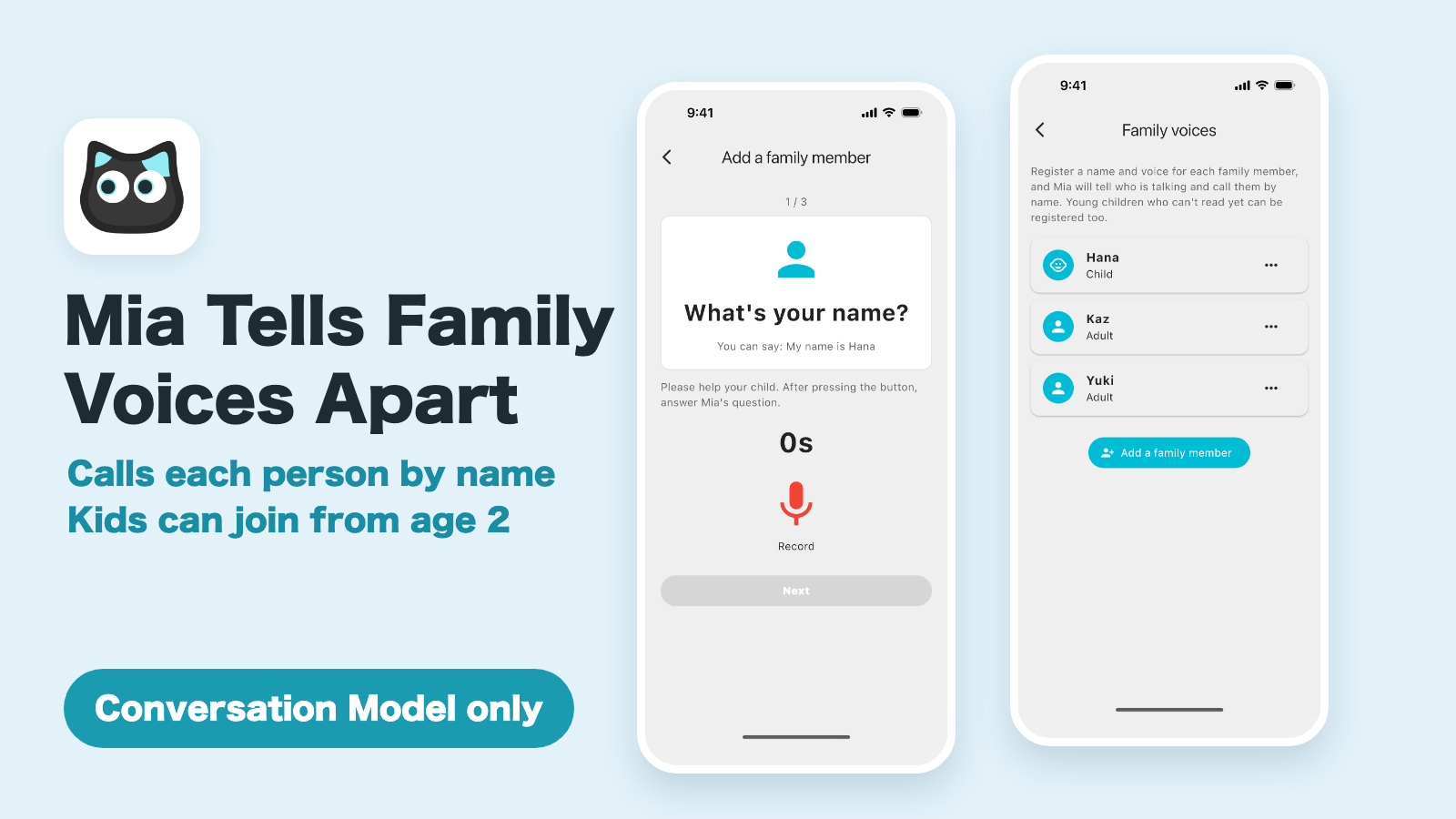
With Mia app 1.26.0, Mia can now tell family members apart by their voices and call the person talking to her by name.
When Dad talks to her, she says "Welcome home, Kaz." When a child talks to her, she asks "Hana, what have you been up to?" Mia used to answer everyone the same way. Now she talks to each person.
This article explains how to register family voices, how to record young children, and what to do when Mia gets a name wrong.
Requirement
Conversation Mode needs a Conversation Model (the device) and the monthly Premium service. See Mia's Two-Way Conversation Mode for details.
Supported models
| Model | Supported |
|---|---|
| Conversation Model | Yes (Premium service required) |
| Standard Model | No (it has no Conversation Mode) |
What's new
- Register a name and voice for each family member (up to 5 people)
- In Conversation Mode, Mia recognizes who is talking and calls them by name
- Children from about age 2 can be registered. Even if they can't read, you can record them talking or singing
- After registering, you can add more voice from the app, or by talking to Mia
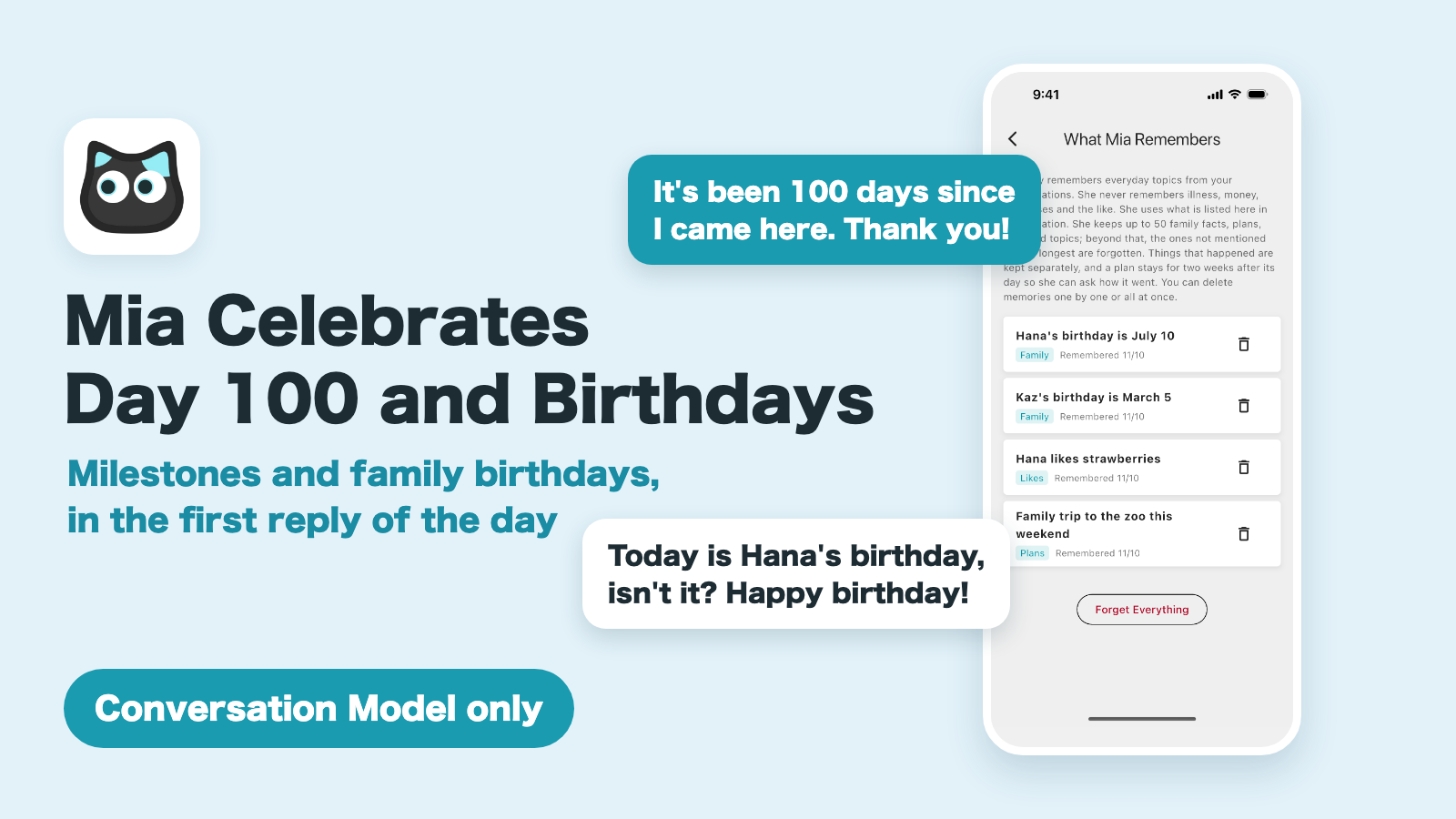
Mia doesn't say your name every time. She uses it in her first reply of a conversation and now and then after that, because hearing your name in every reply would feel unnatural.
Registering family voices
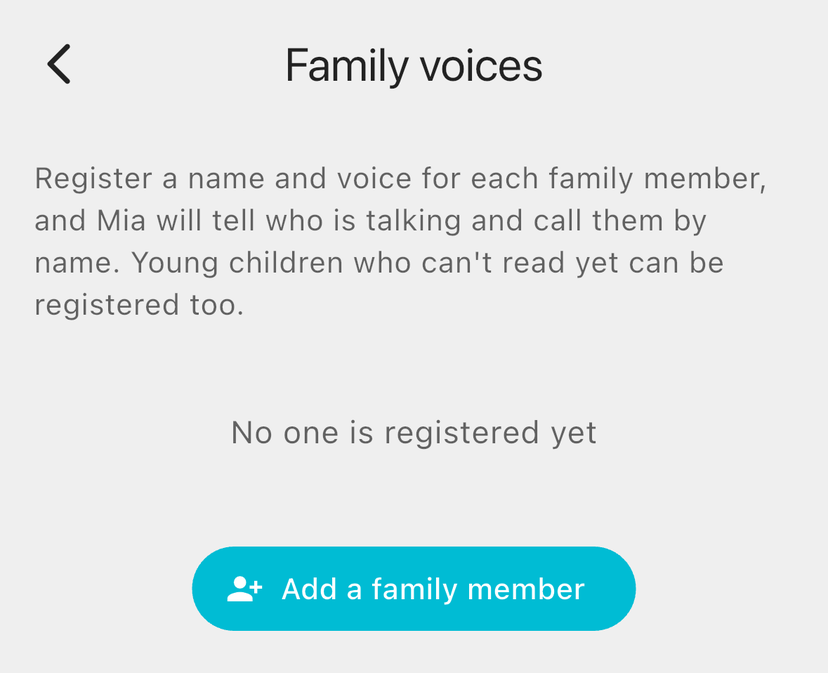
1. Open "Family voices"
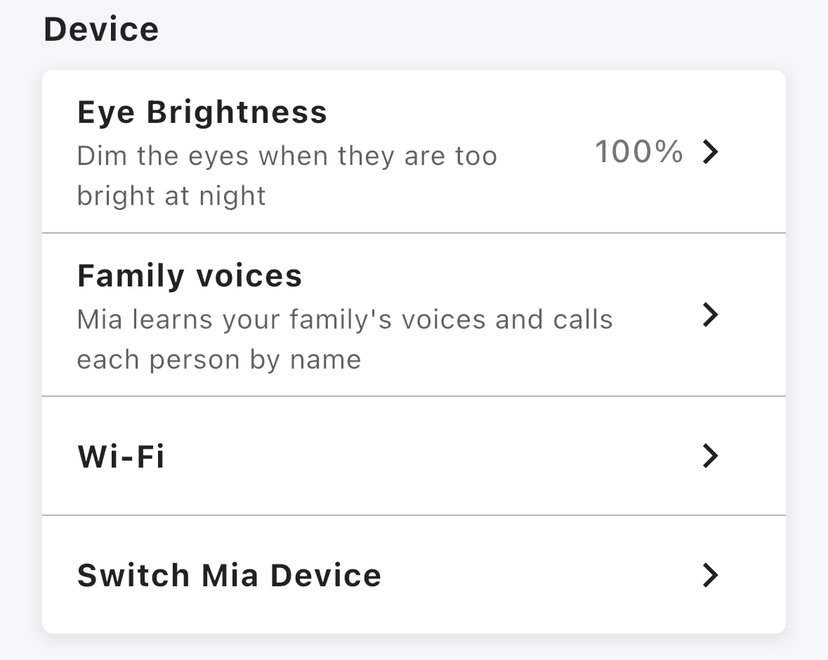
On the Home screen, tap "Family voices" in the "Device" section.
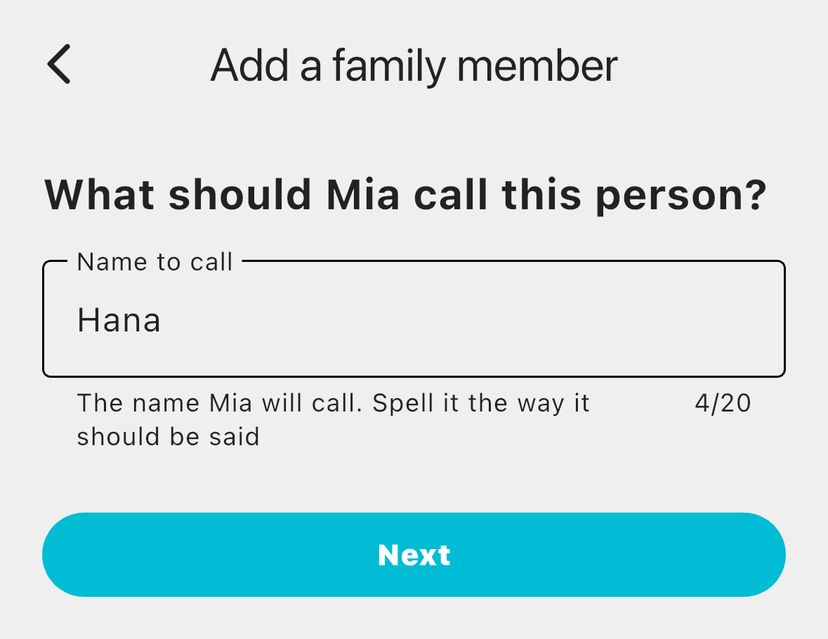
2. Tap "Add a family member" and enter a name
Tap "Add a family member" and enter the name you want Mia to use, such as "Kaz" or "Hana". The name you use every day is fine. Spell it the way it should be said.
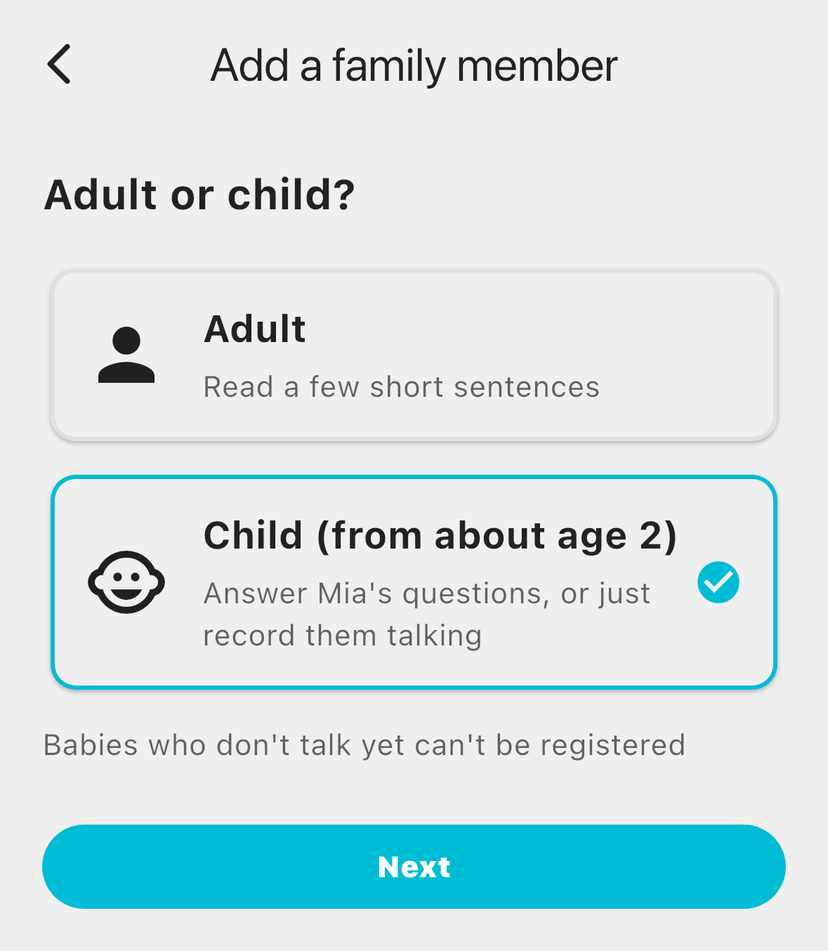
3. Choose adult or child, then record
The way you record depends on whether the person is an adult or a child.
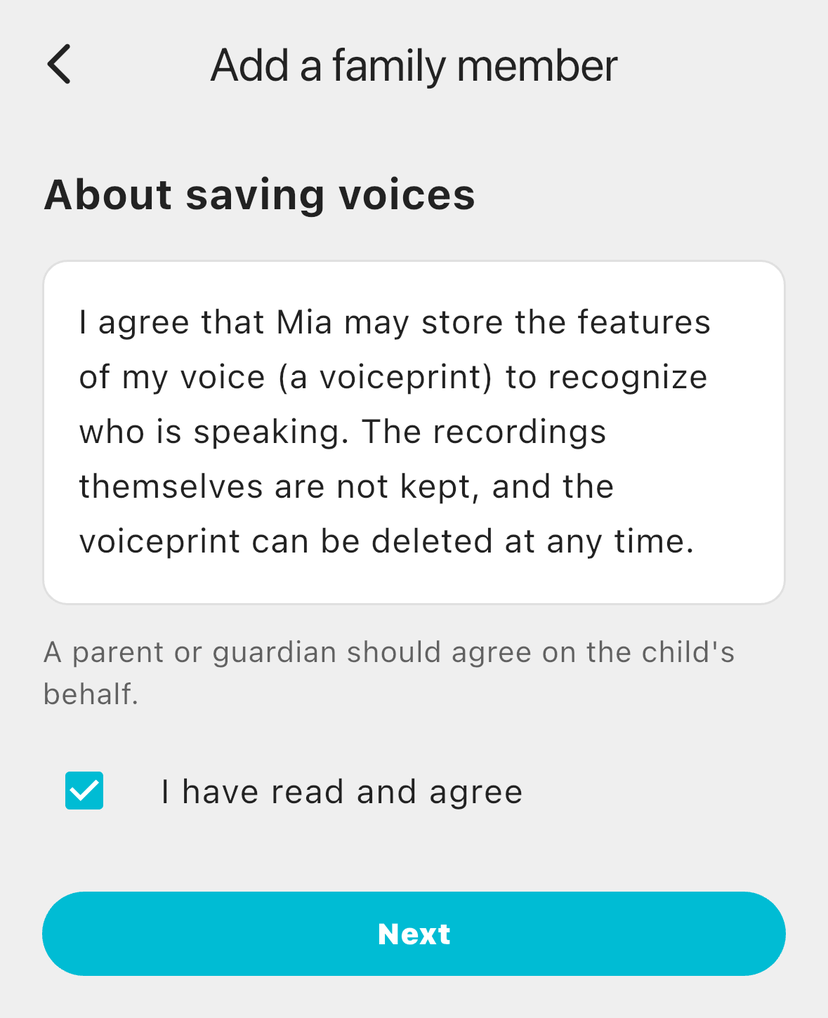
Next, read the explanation about saving voices and check "I have read and agree". The recordings themselves are not kept. Only the features of the voice (a voiceprint) are saved, and the voiceprint can be deleted at any time.
For adults
Read a few short sentences shown on the screen. Hold the phone a little away from your face and speak normally.
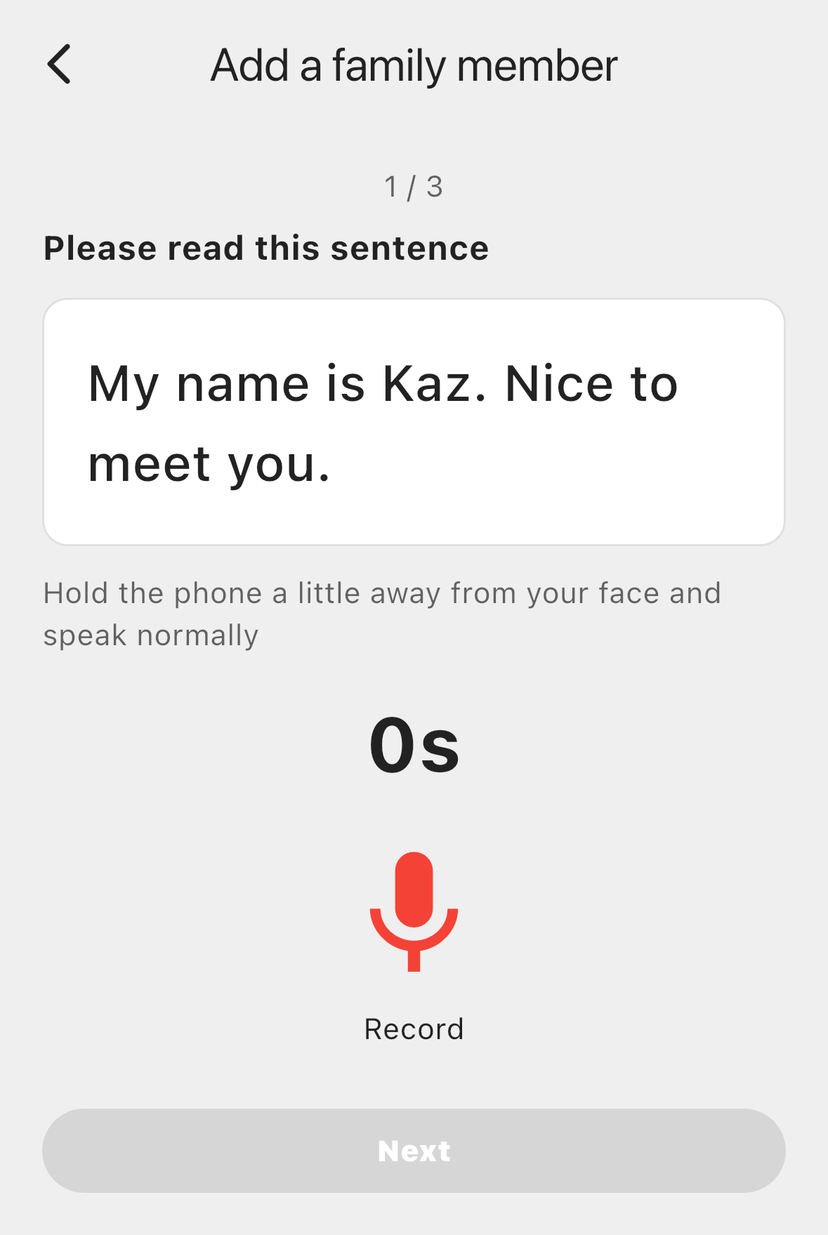
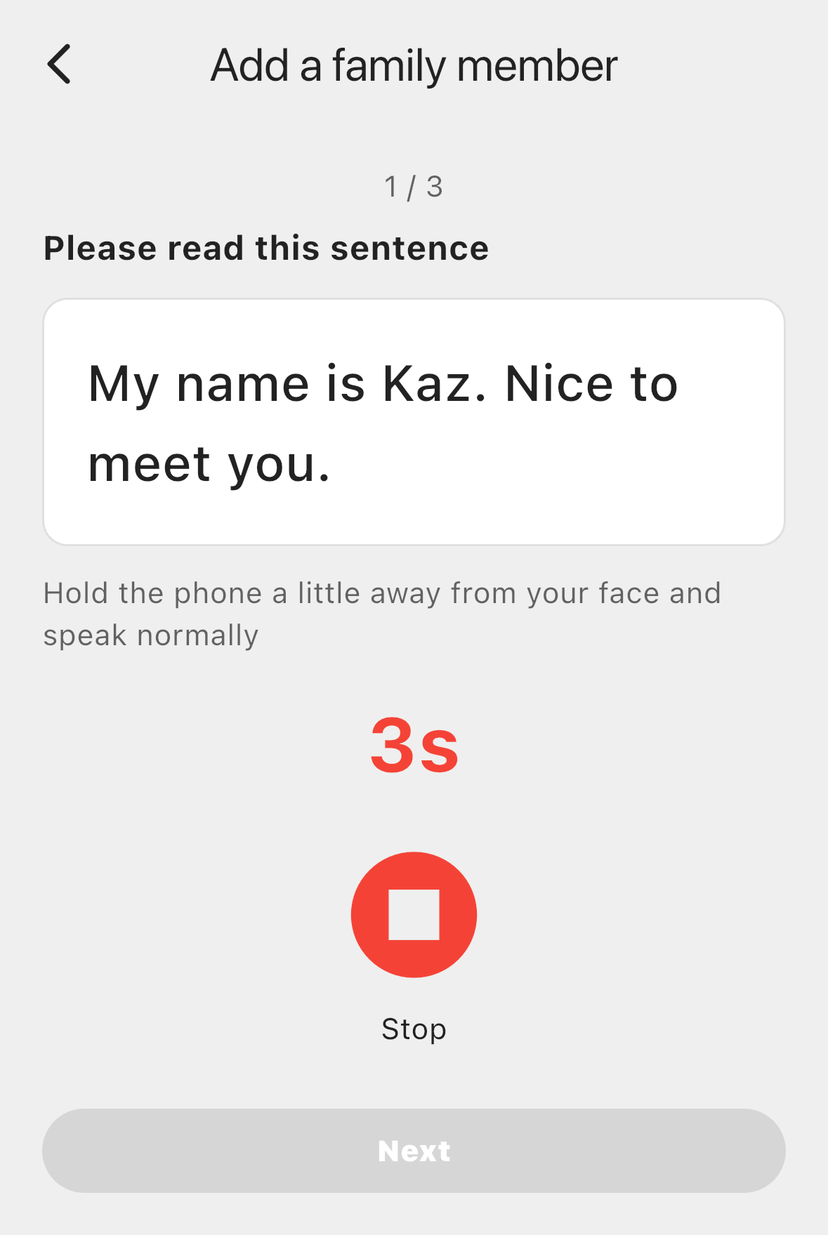
Tap "Record", read the sentence, then tap "Stop". Repeat this for three sentences.
For children
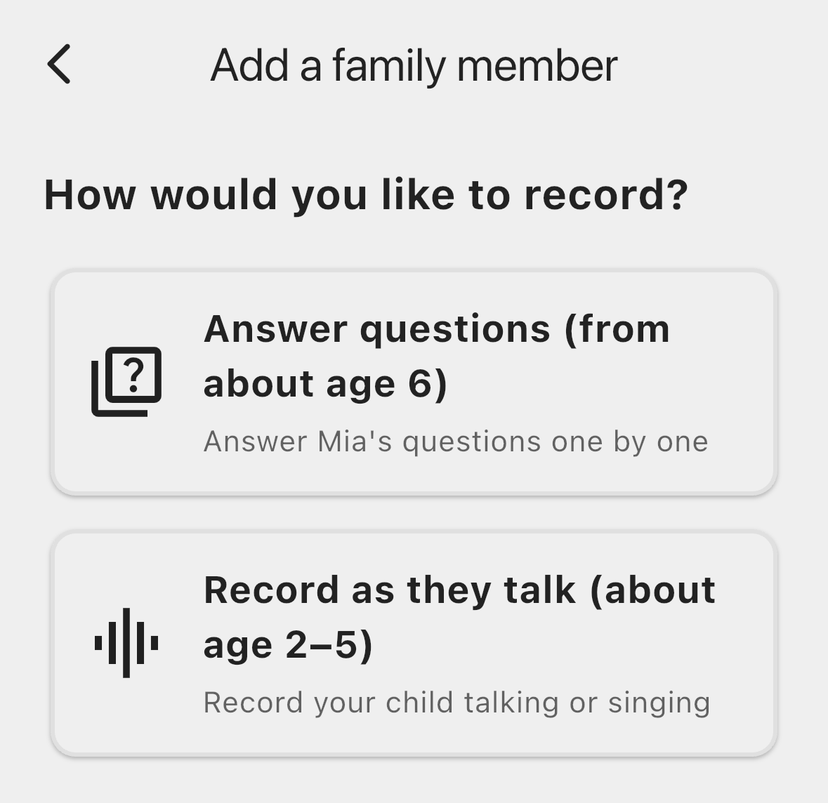
There are two ways to record, depending on the child's age.
| How to record | Age | What happens |
|---|---|---|
| Answer questions | From about age 6 | The child answers Mia's questions one by one |
| Record as they talk | About age 2–5 | You record the child talking or singing |
With "Record as they talk", your child doesn't need to say anything in particular. Record them singing a favorite song or chatting, a few times.
While recording, please stay quiet. If an adult's voice is picked up, the app may ask you to record again.
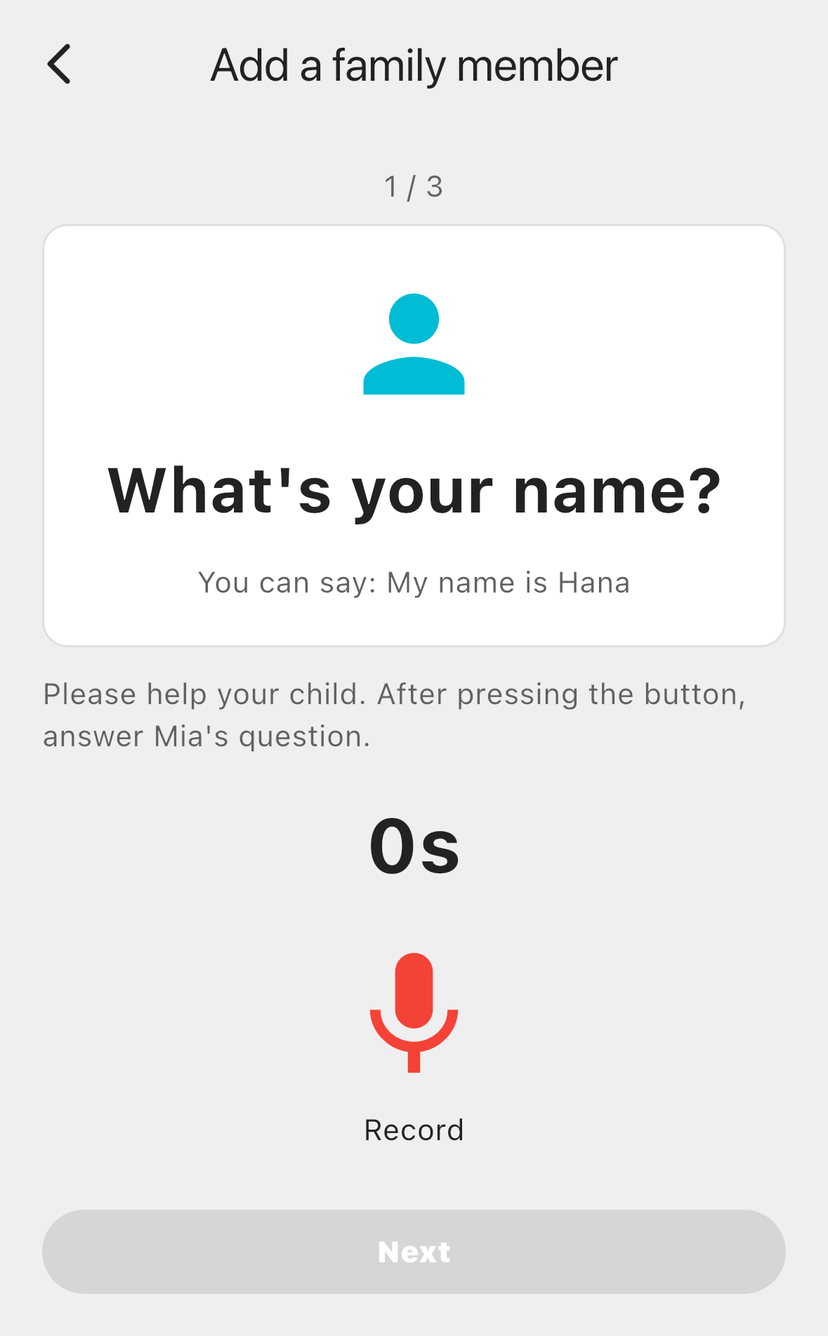
With "Answer questions", Mia's question ("What's your name?", "How old are you?" and so on) is shown in large text. Read it to your child and record their answer.
With "Record as they talk", press the record button while your child is talking or singing. Record a few short clips, and you can register once there is enough in total.
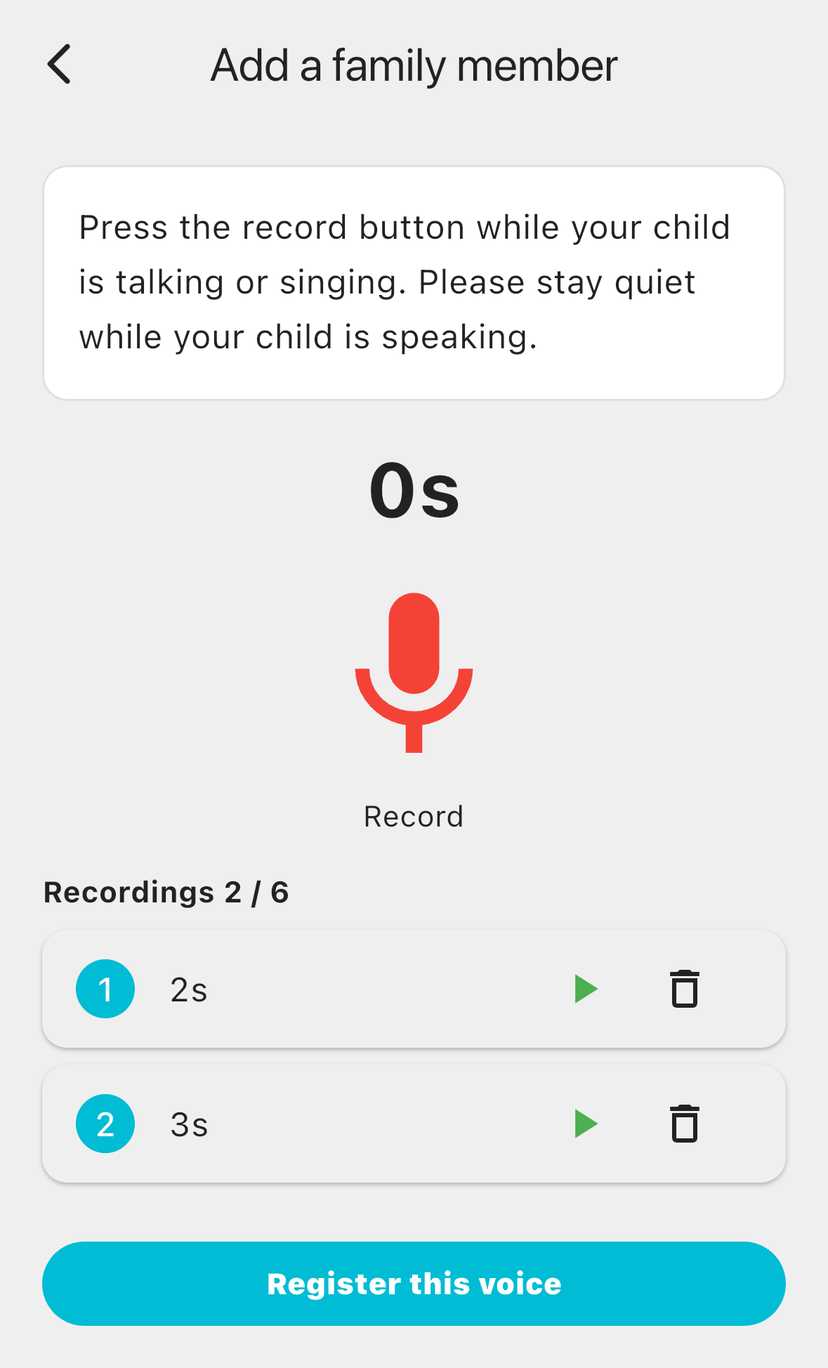
Babies who don't talk yet can't be registered. A parent or guardian should read the explanation and agree on the child's behalf.
4. Listen back and register
When everything is recorded, listen back (▶) and tap "Register this voice" if it sounds good. You can redo any single recording that didn't come out well.
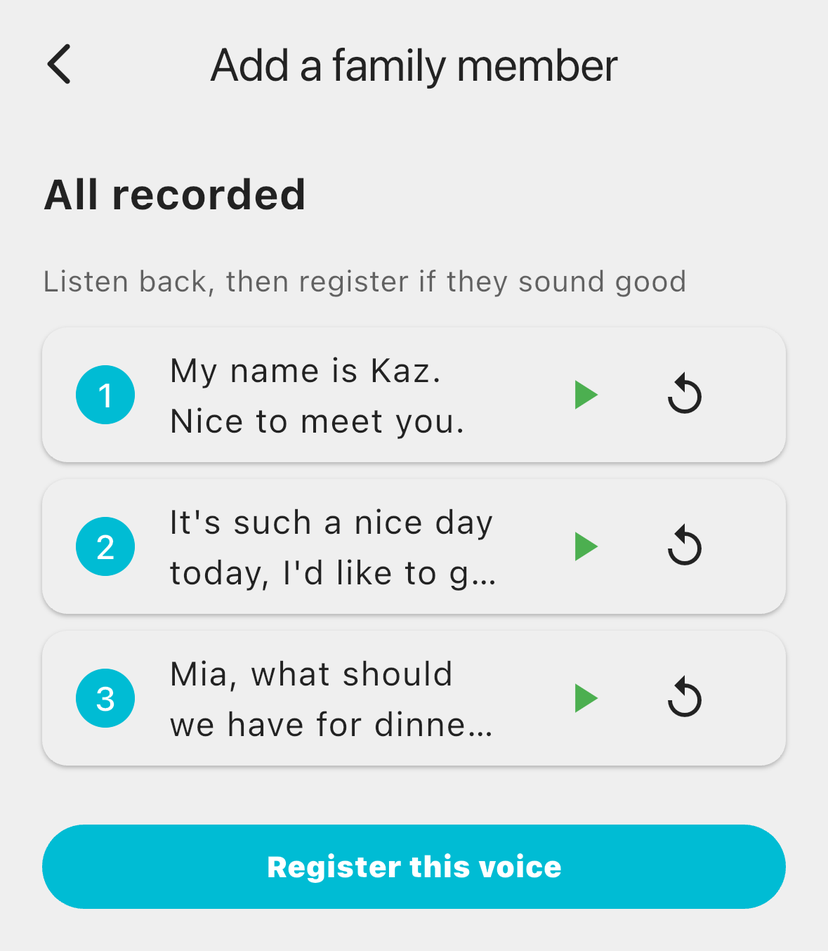
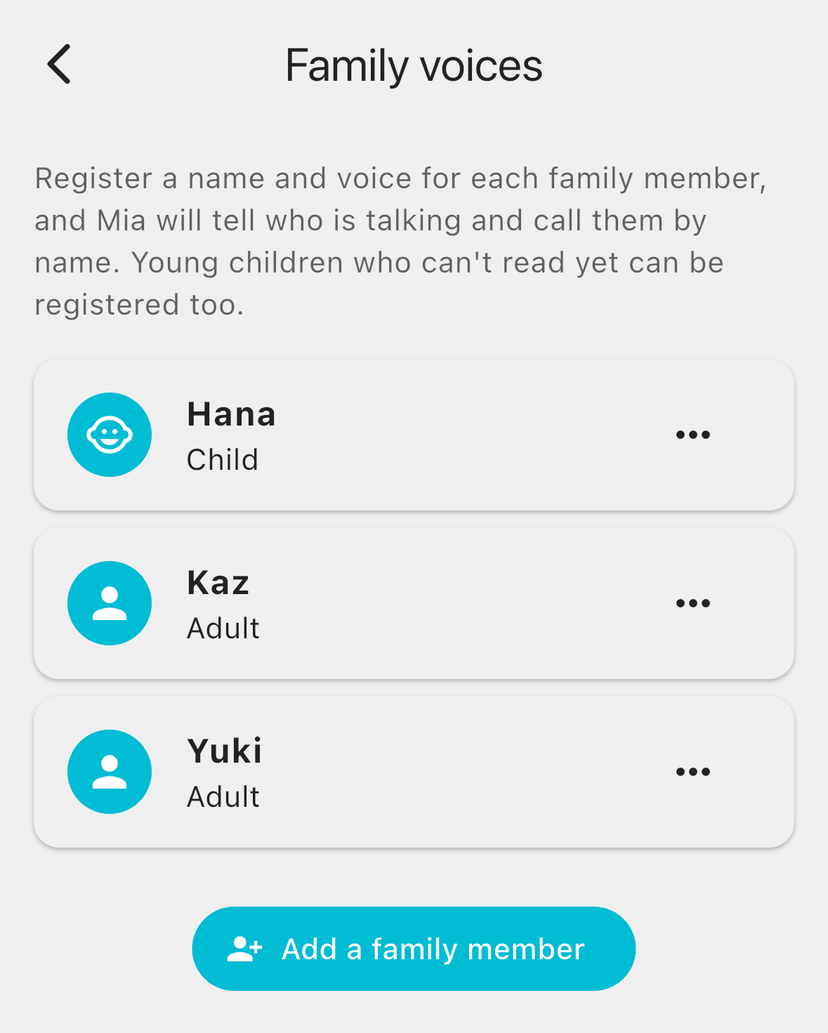
Registered people appear in the list by name.
If Mia has trouble: add more voice
Your voice sounds a little different on your phone than it does next to Mia. If Mia calls someone by the wrong name, or doesn't use their name, adding more voice helps. There are two ways.
| Option | How it works |
|---|---|
| Add more voice | Record again in the app and add it |
| Add voice via Mia | Add the voice you speak to Mia, as it is |
We recommend "Add voice via Mia". It collects the same voice Mia hears every day, so it helps the most.
How to use "Add voice via Mia"
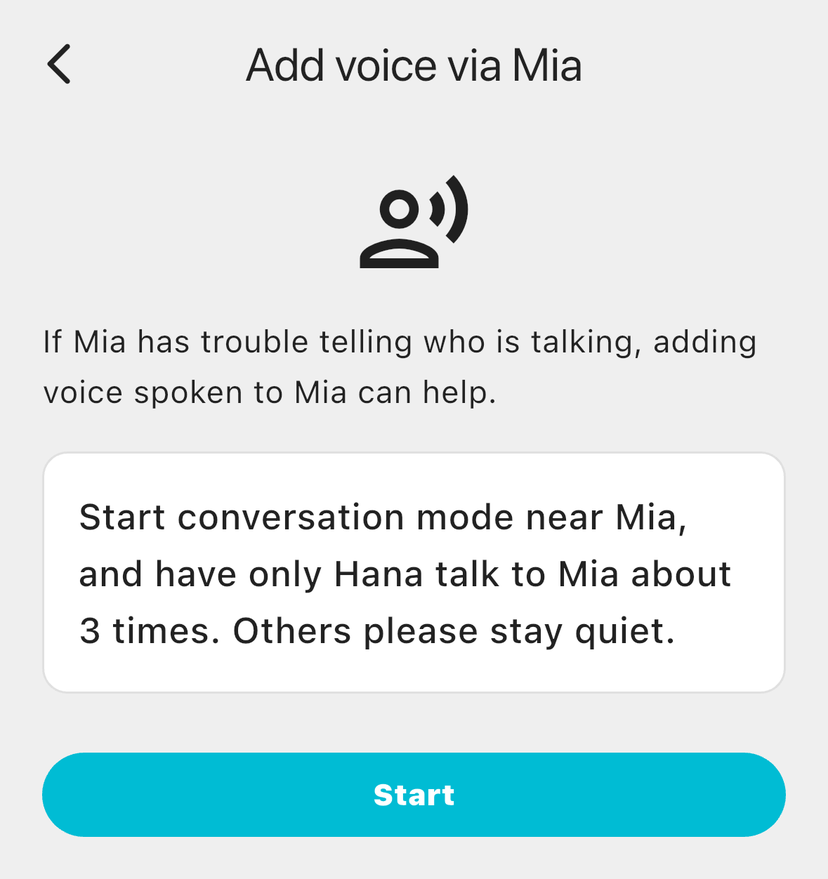
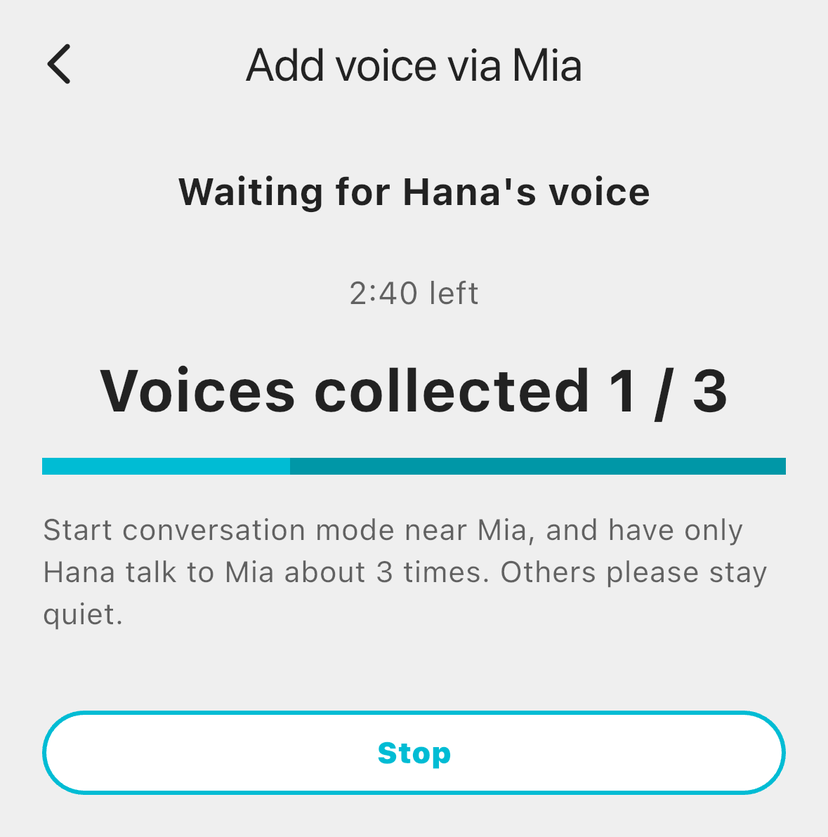
- In the list, tap "…" next to the person, choose "Add voice via Mia", then tap "Start"
- Start Conversation Mode near Mia, and have only that person talk to Mia about 3 times
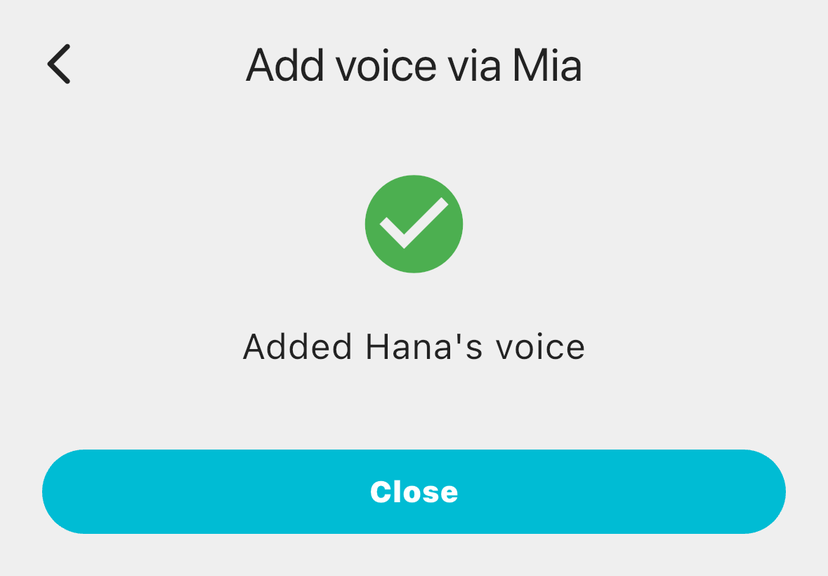
- When "Added (name)'s voice" appears, you're done
While voice is being added, others should stay quiet. Other voices mixed in make recognition harder.
Changing or deleting a name
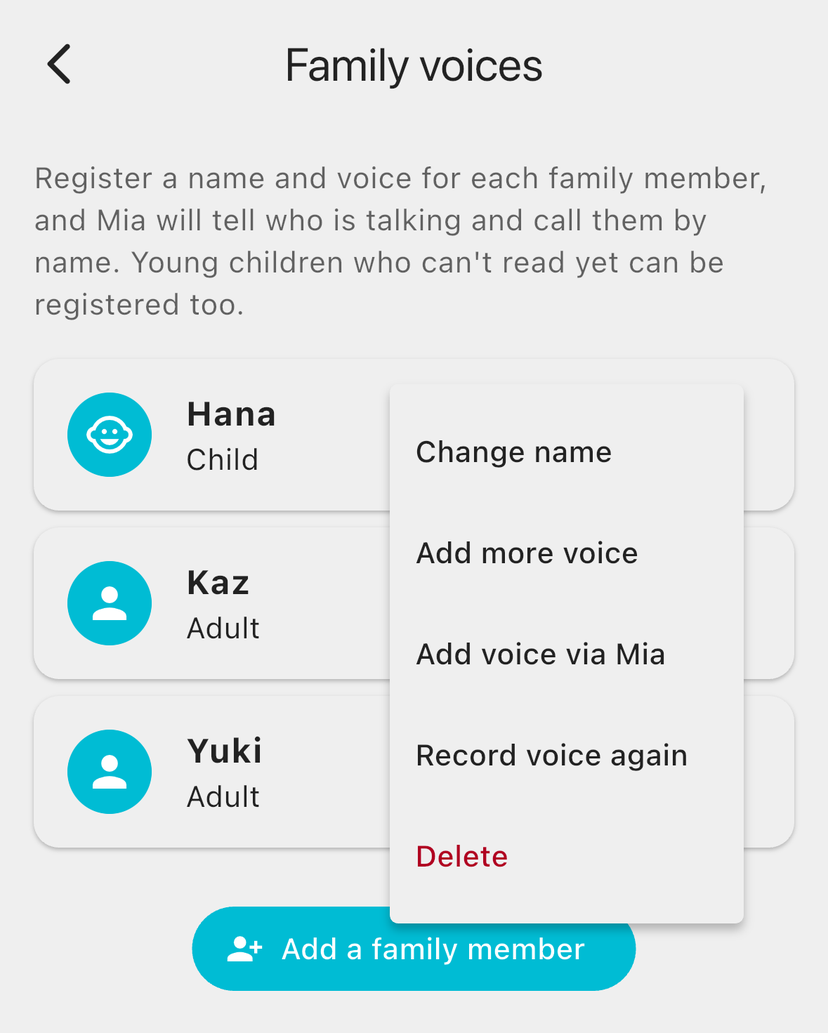
In the list, tap "…" next to a person to:
- Change name
- Record voice again
- Delete (the saved voice is deleted too, and this can't be undone)
Works well with "What Mia Remembers"
Mia also remembers family names and favorite things she hears in conversation. Together with voice recognition, she can bring up topics that fit the person she's talking to.

If you use the Standard Model
This feature is for the Conversation Model only. The Standard Model plays recorded phrases and family voice messages at set times, and has no Conversation Mode where you talk to Mia and she answers.
With the Conversation Model, whoever in the family talks to Mia, she answers using their name.
🐱 Learn more or buy the Conversation Model
Mia (Black) Conversation Model / Mia (White) Conversation Model
FAQ
How many people can I register?
Up to 5. To add a sixth person, delete someone first.
What happens when someone who isn't registered talks to Mia?
She answers as usual, without using a name.
Mia calls people by the wrong name
Adding more voice helps, especially "Add voice via Mia". Recognition is harder when the TV is loud or several people talk at once.
How are the recordings handled?
The recordings themselves are not kept. Only the voice features (a voiceprint) used to tell voices apart are saved. When you delete a person, their voiceprint is deleted too.
Summary
- Register family voices, and Mia recognizes who is talking and calls them by name
- Up to 5 people. Children from about age 2 can be registered with "Record as they talk"
- If Mia has trouble, "Add voice via Mia" is the best fix
- You need a Conversation Model and the Premium service
If you have any questions, please contact us from "Help & Contact" in the app.
👀 You may also like:
👉 2026 Guide: AI Pet Robots for Elderly Loneliness – A Comparison of 10 Companion Robots
👉 2026 Edition: 9 Recommended Pet Robots Under $150 – Cheap, Cute, and Healing Models
👉 Monthly and Maintenance Costs of Pet Robots: Moflin, LOVOT, Mia, and More
👉 Mia – Your Chatty AI Cat Companion Robot with 100+ Expressions