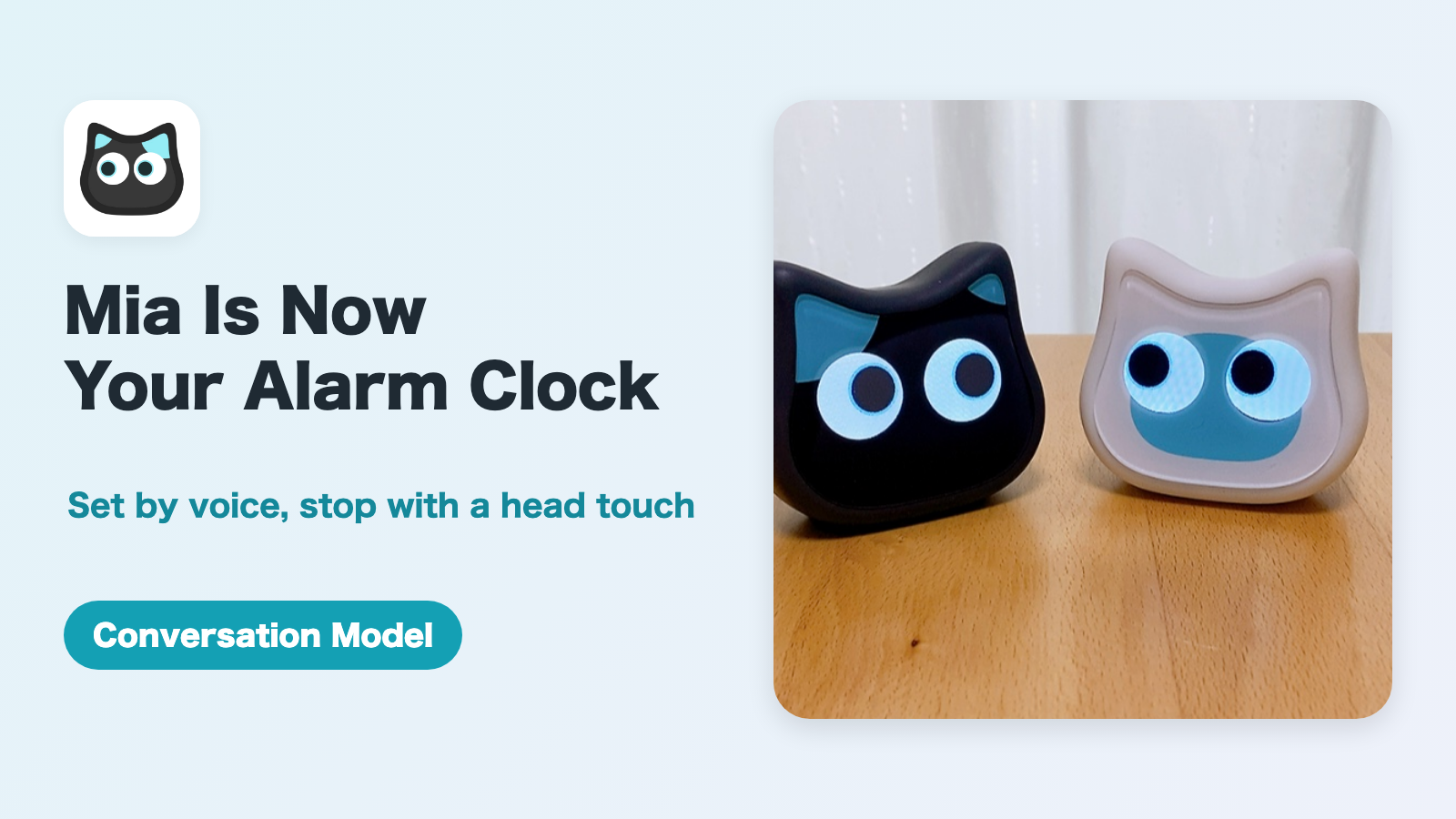
With the Mia app (version 1.25.0), the Conversation Model can now be used as an alarm.
Just say "Set an alarm for 7:50" or "Wake me up in 30 minutes", and Mia rings at that time. To stop it, touch Mia's head. Use it as an alarm clock, or as a timer for cooking or medicine.
This article explains how to set alarms, the sounds and ring lengths you can choose, and what to know before you use it.
Here is Mia setting an alarm by voice (“Wake me up in a minute”) and stopping it with a tap on her head.
Supported models
| Model | Supported |
|---|---|
| Conversation Model | Yes (a device software update is required) |
| Standard Model | No |
- Setting alarms by voice needs Conversation Mode (a Conversation Model plus the monthly Premium service). See Mia's Two-Way Conversation Mode for details.
- Setting alarms in the app works with a Conversation Model device.
- Alarms need updated Mia device software. If the Alarms screen in the app says "Update Mia's software to use alarms.", update Mia and try again.
What you can do
- Set, cancel and check alarms by talking to Mia
- Ring once, every day, on weekdays, on weekends, or on chosen days
- Use it as a timer, such as "in 30 minutes"
- See, add and delete alarms in the app
- Choose from five alarm sounds, with previews
- Choose how long it keeps ringing if you don't stop it
- Touch Mia's head to stop the alarm
Set an alarm by voice
In Conversation Mode, tap Mia's head and talk to her. For example:
| What you want | What to say |
|---|---|
| A specific time | "Set an alarm for 7:50" |
| Every day | "Wake me up at 6:30 every morning" |
| A timer | "Let me know in 30 minutes" |
| Check what is set | "What alarms do I have?" |
| Cancel | "Cancel the 7 o'clock alarm" / "Cancel all alarms" |
Mia only says something like "Okay, I set it for 7:50 tomorrow morning" when the alarm has actually been saved. If she doesn't know the time, she asks "What time?", and you can answer "Seven".
If you only give a time ("Wake me at 7"), the alarm is set for the next 7 o'clock to come. If it's unclear whether you mean a.m. or p.m., the nearer one is used.
Check and set alarms in the app
1. Open "Alarms"
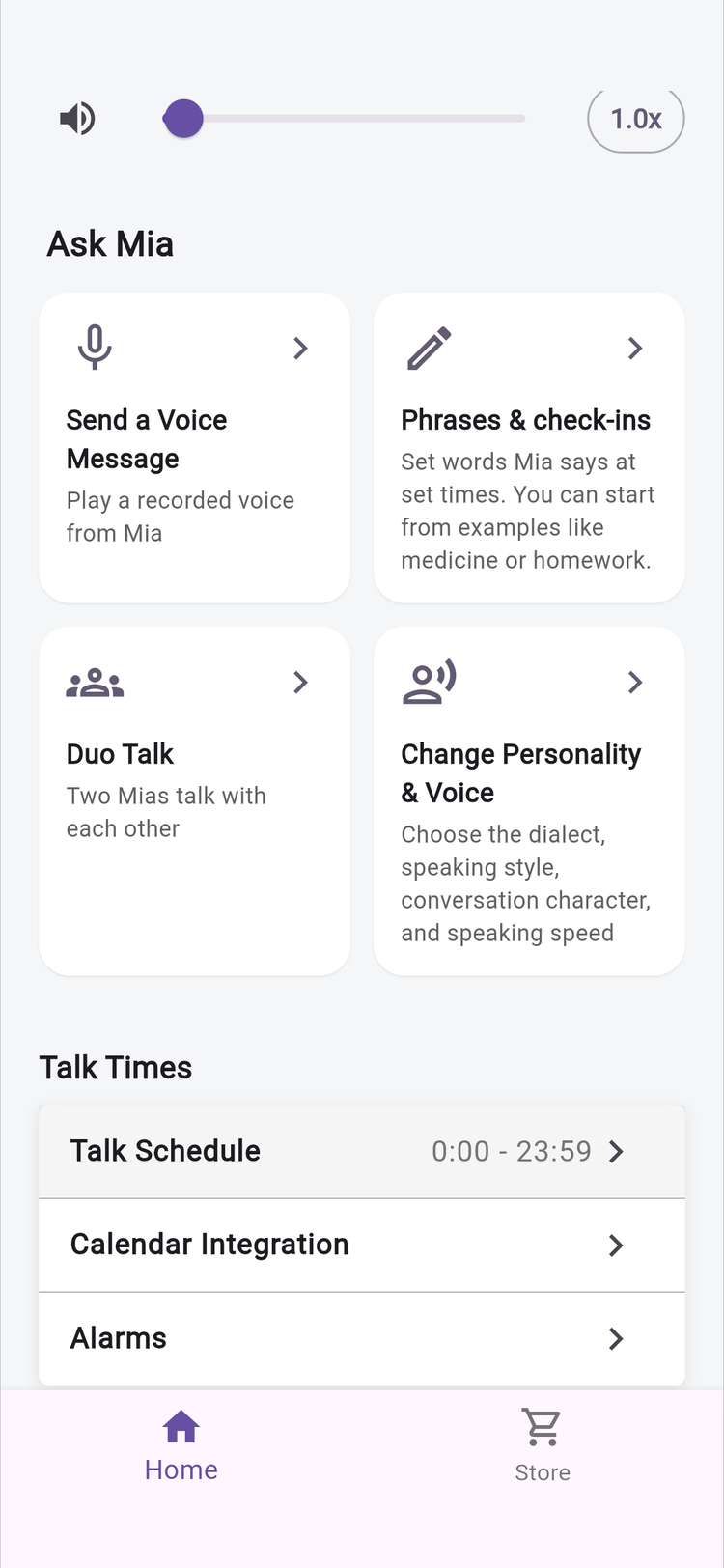
On the Home screen of the app, tap "Alarms" in the "Talk Times" section.
2. See your alarms
Alarms are listed in the order they will ring. One-time alarms show the date, and repeating alarms show "Every day", "Weekdays", "Weekends" or the chosen days.
One-time alarms that have already rung are removed from the list automatically.
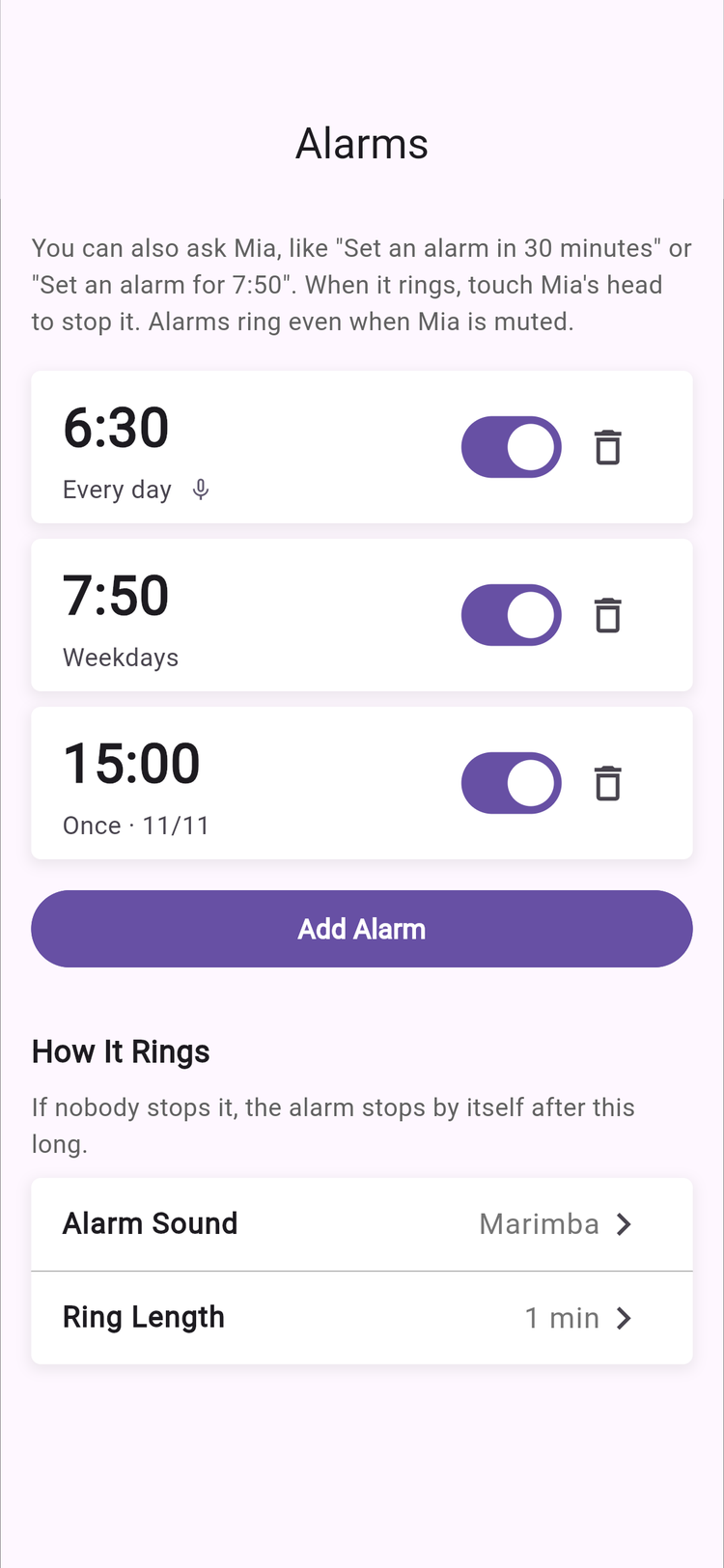
Each alarm has a switch, so you can turn it off for a while without deleting it. The microphone mark shows an alarm set by voice.
3. Add an alarm
Tap "Add Alarm", choose the time and the days to repeat, and tap "Save".
- If you choose no days, the alarm rings once, the next time that time comes
- You can give it a name of up to 20 characters, such as "Medicine" (optional)
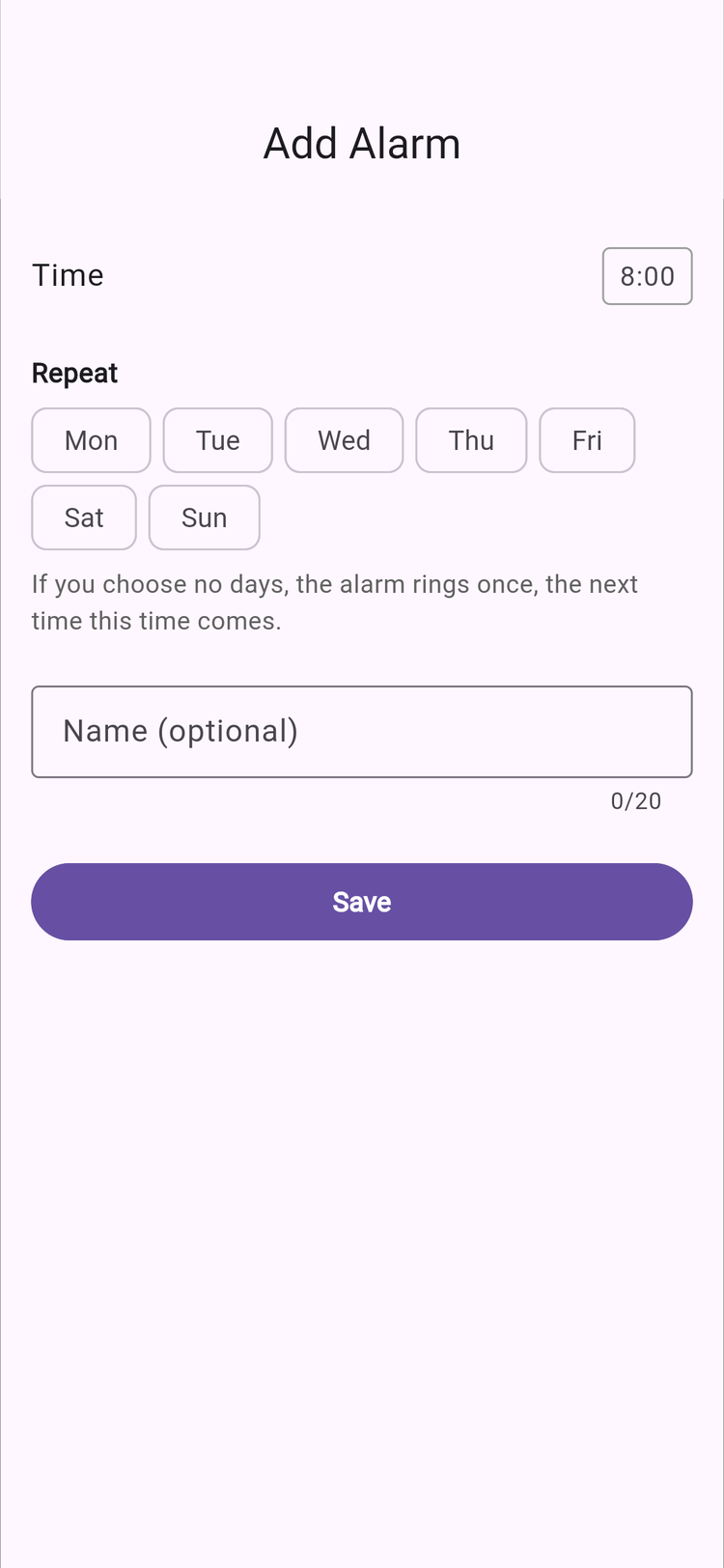
You can set up to 10 alarms per Mia. Delete alarms you no longer use.
4. Choose how it rings
Under "How It Rings" below the list, choose the alarm sound and the ring length.
Alarm Sound (five sounds, with previews)
| Sound | Feel |
|---|---|
| Marimba (default) | Light and gentle |
| Music Box | Calm and soft |
| Birdsong | A natural morning feel |
| Bell Clock | A classic alarm clock that gets you up |
| Fanfare | Lively and upbeat |
Tap "Play sound sample" to hear each sound on your phone.
Ring Length
If you don't stop it, the alarm stops by itself after the length you choose: 30 seconds, 1 minute (default), 3 minutes or 5 minutes.
Stop the alarm
When the alarm rings, touch Mia's head to stop it. Mia doesn't say anything after it stops.
For now, you can't stop it by voice, such as by saying "Stop". Please touch her head.
Things to know
- It rings even when Mia is muted, including while she is muted for Google Calendar events.
- If an alarm time comes during a conversation, Mia stops the conversation and rings.
- There is no snooze. Once stopped, it's done. To ring again, say something like "Wake me up in 10 minutes".
- The volume follows Mia's volume setting, with a minimum so it's never too quiet to hear.
- It rings outside Mia's talk times, too. The alarm list is sent to Mia in advance, so she wakes up and rings on time.
- Times are in Mia's local time. If a family member far away sets an alarm in the app, it rings at that time in Mia's home.
Good ways to use it
- A morning alarm, on weekdays only or weekends only if you like
- A cooking or bath timer: just say "Let me know in 20 minutes"
- A reminder for medicine or appointments, which family members can also set from the app
- Stopping a nap from running long: "Wake me up in an hour"
FAQ
Does the Standard Model support alarms?
No. Alarms are a Conversation Model feature.
How many alarms can I set?
Up to 10 per Mia. One-time alarms that have already rung don't count.
Can I stop the alarm by voice?
Not for now. Touch Mia's head to stop it.
Will it ring if Wi-Fi drops?
The alarm list is sent to Mia when you set it. After that, Mia keeps the time and rings by herself. Wi-Fi is needed to send new or changed alarms to Mia.
The app says "Update Mia's software to use alarms."
Alarms need newer device software. Update Mia and try again.
Will an alarm set by a family member in the app ring?
Yes. Any family member with access to Mia in the app can set and delete alarms, even from far away.
Summary
- The Conversation Model can now be used as an alarm and timer
- Set alarms by voice ("Wake me at 7"), or in the app, where you can also see, add and delete them
- Choose from five sounds with previews, and a ring length of 30 seconds to 5 minutes
- Touch Mia's head to stop it. It rings even when Mia is muted
🐱 Conversation Model details and purchase Mia (Black) Conversation Model / Mia (White) Conversation Model
If you have any questions, please contact us from "Help & Contact" in the app.
👀 You may also like:
👉 2026 Guide: AI Pet Robots for Elderly Loneliness – A Comparison of 10 Companion Robots
👉 2026 Edition: 9 Recommended Pet Robots Under $150 – Cheap, Cute, and Healing Models
👉 Monthly and Maintenance Costs of Pet Robots: Moflin, LOVOT, Mia, and More
👉 Mia – Your Chatty AI Cat Companion Robot with 100+ Expressions